> ## Documentation Index
> Fetch the complete documentation index at: https://docs.symplr.io/llms.txt
> Use this file to discover all available pages before exploring further.
# Contact Support
Contact Symplr support for assistance with application issues, configuration problems, integrations, or account-related concerns.
## When to Contact Support
Please contact support if you encounter any of the following:
* Errors or unexpected behavior within the application
* Features not functioning as expected
* Issues related to Figma import or Blueprint View
* Challenges with configuration, workflows, or integrations
* Account or access-related concerns
## Report Issues Directly from the Application
Symplr provides a built-in mechanism to report issues efficiently at the point of occurrence.
* When an error message appears, a **“Contact Support”** button is displayed
* Click the **“Contact Support”** button to submit the issue
The following example shows how the **“Contact Support”** option appears within an error message:
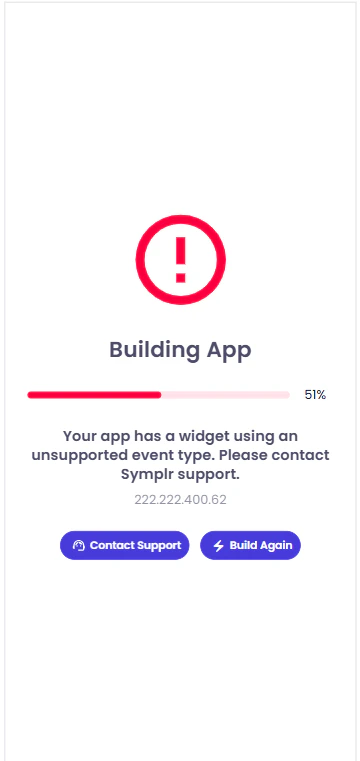 In this example, the error message includes a **“Contact Support”** button to submit the issue directly within the application.
Upon submission, Symplr automatically captures and sends relevant technical details to the support team, including:
* **Application ID**
* **Error code**
* **Error information**
* **Customer details**
These details are automatically sent to the support team, enabling faster analysis and resolution.
## Before You Contact Support
Before contacting support, review available product documentation, FAQs, and product updates for known issues and guidance.
## How to Contact Support
### In-App Support
Access support directly from within the application:
1. Click the **Help** button
2. Initiate a chat with the support team
3. Provide details of your issue, including screenshots, steps, or error messages
### Email Support
For more detailed queries or when attachments are required, contact support via email:
[**support@101digital.io**](mailto:support@101digital.io)
## Provide Additional Details
When contacting support, include the following where applicable:
* Project or application name
* Description of the issue
* Steps to reproduce the issue
* Screenshots or recordings
💡 When using the **Contact Support** button, most technical details are captured automatically.
## Response Time
Support requests are typically reviewed within 24–48 hours. Critical issues such as application crashes, build failures, or blocking issues may receive priority responses.
For critical issues, use in-app support for faster assistance.
In this example, the error message includes a **“Contact Support”** button to submit the issue directly within the application.
Upon submission, Symplr automatically captures and sends relevant technical details to the support team, including:
* **Application ID**
* **Error code**
* **Error information**
* **Customer details**
These details are automatically sent to the support team, enabling faster analysis and resolution.
## Before You Contact Support
Before contacting support, review available product documentation, FAQs, and product updates for known issues and guidance.
## How to Contact Support
### In-App Support
Access support directly from within the application:
1. Click the **Help** button
2. Initiate a chat with the support team
3. Provide details of your issue, including screenshots, steps, or error messages
### Email Support
For more detailed queries or when attachments are required, contact support via email:
[**support@101digital.io**](mailto:support@101digital.io)
## Provide Additional Details
When contacting support, include the following where applicable:
* Project or application name
* Description of the issue
* Steps to reproduce the issue
* Screenshots or recordings
💡 When using the **Contact Support** button, most technical details are captured automatically.
## Response Time
Support requests are typically reviewed within 24–48 hours. Critical issues such as application crashes, build failures, or blocking issues may receive priority responses.
For critical issues, use in-app support for faster assistance.