> ## Documentation Index
> Fetch the complete documentation index at: https://docs.symplr.io/llms.txt
> Use this file to discover all available pages before exploring further.
# Share Projects
Share Projects allows application projects to be shared with other users directly from Blueprint View for collaborative editing, review, and application development workflows.
Invited users receive an email invitation with access to the shared project. After accepting the invitation and signing in to Symplr, the shared project opens directly in Blueprint View for continued development and collaboration.
## Before You Begin
Before sharing a project in Symplr, ensure:
* The project is available in Blueprint View
* You have access to the Share option
* The recipient has a valid email address
* The project is ready for collaboration or review
## Open the Share Option
Open the required project in **Blueprint View** and click the **Share** button from the top-right corner of the workspace.
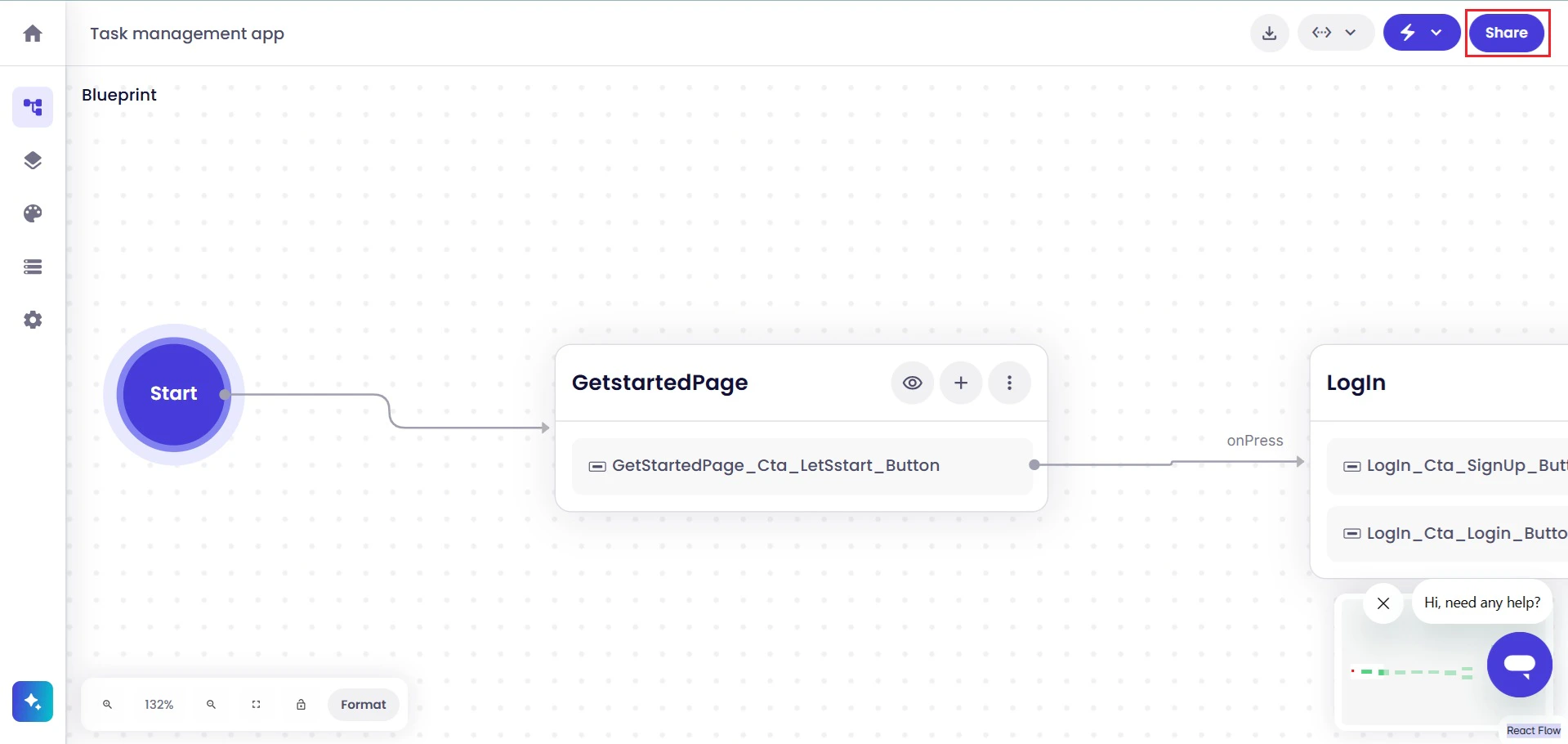 The Share option allows additional users to be invited for collaborative access to the project.
## Invite Collaborators
After clicking **Share**, Symplr displays the project sharing dialog.
Enter the email address of the user you want to invite and click **Invite**.
The Share option allows additional users to be invited for collaborative access to the project.
## Invite Collaborators
After clicking **Share**, Symplr displays the project sharing dialog.
Enter the email address of the user you want to invite and click **Invite**.
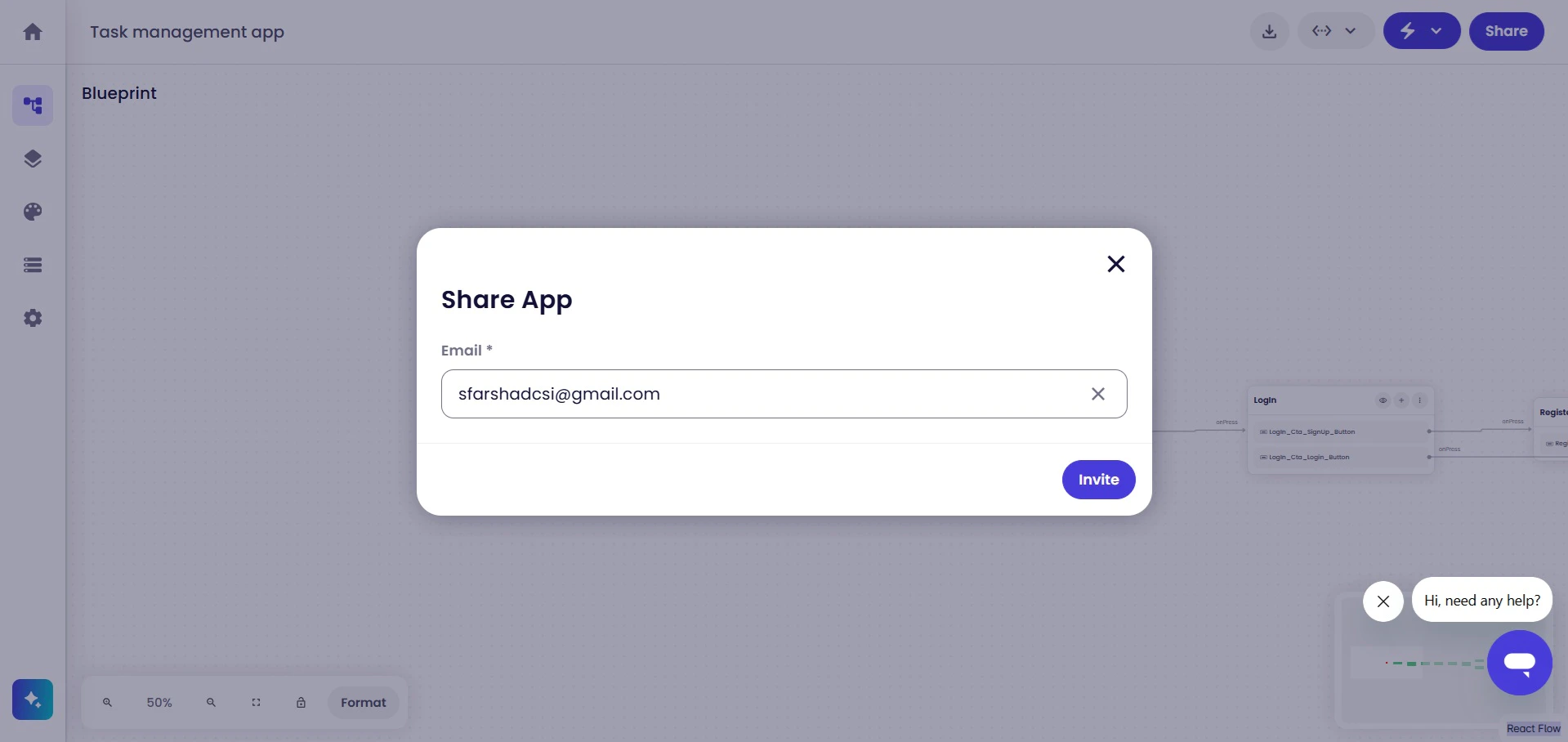 Symplr sends a project invitation to the specified email address.
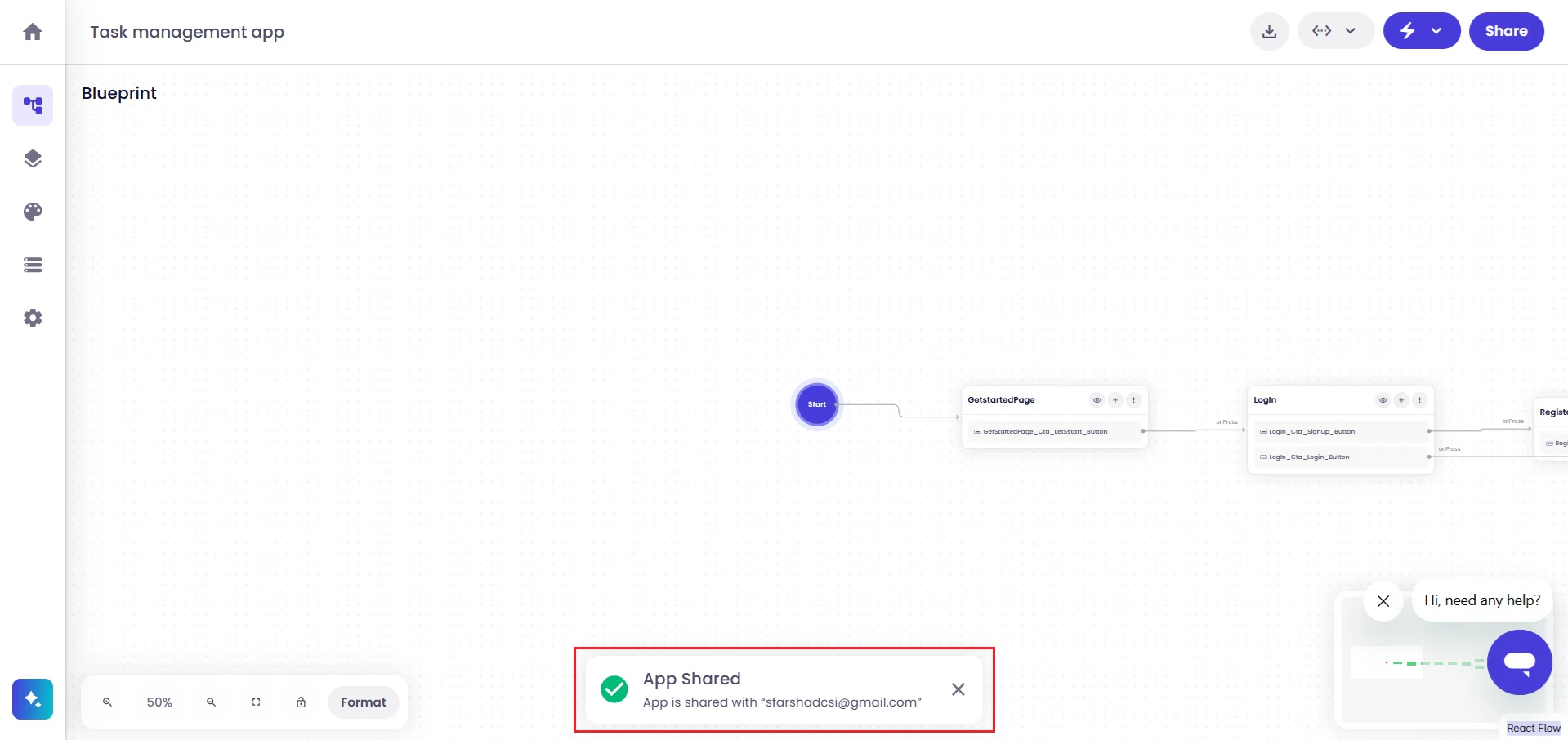
Once the invitation is sent successfully, Symplr displays a confirmation notification.
Symplr sends a project invitation to the specified email address.
Once the invitation is sent successfully, Symplr displays a confirmation notification.
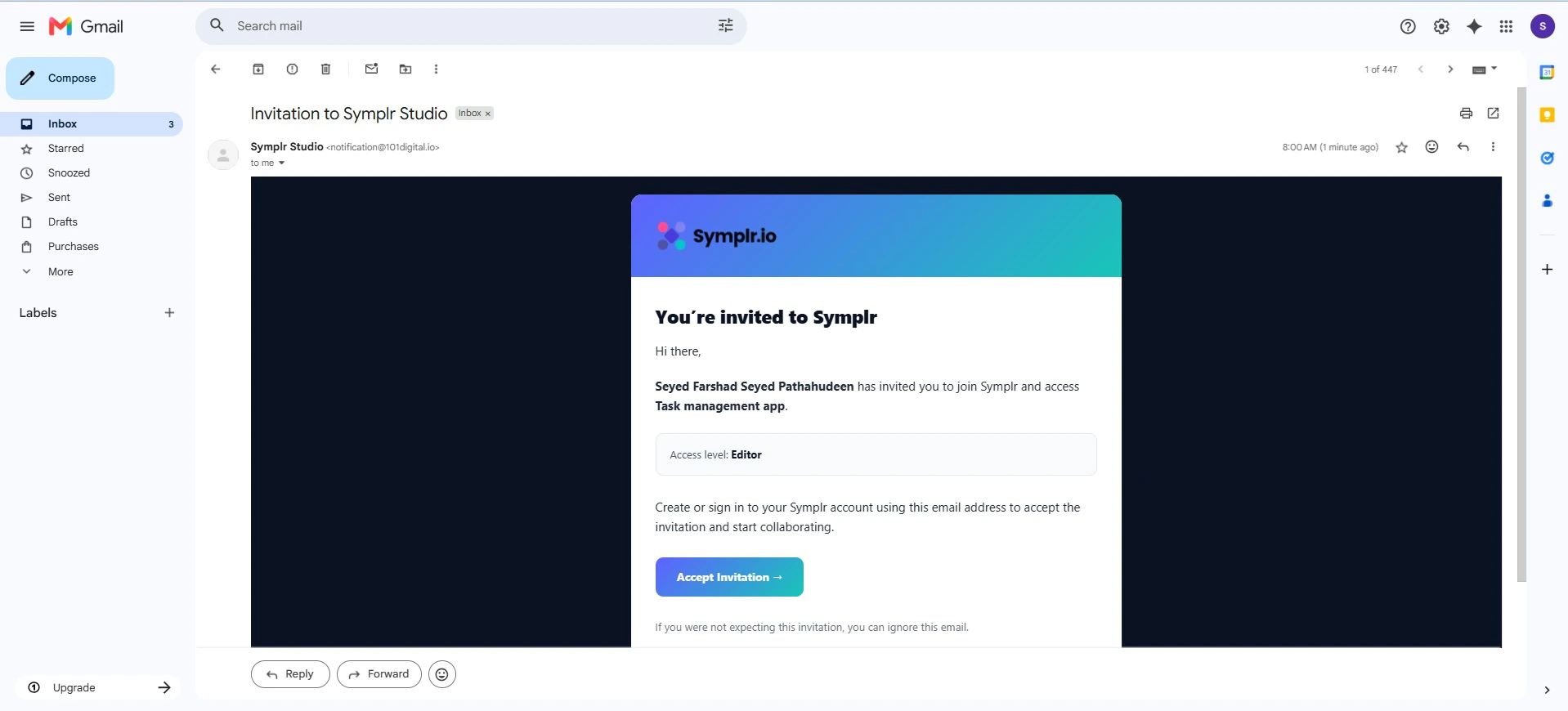
 The invited user then receives an email invitation with access details for the shared project.
 ## Accept the Invitation
To access the shared project, the invited user must click **Accept Invitation** from the email notification.
## Accept the Invitation
To access the shared project, the invited user must click **Accept Invitation** from the email notification.
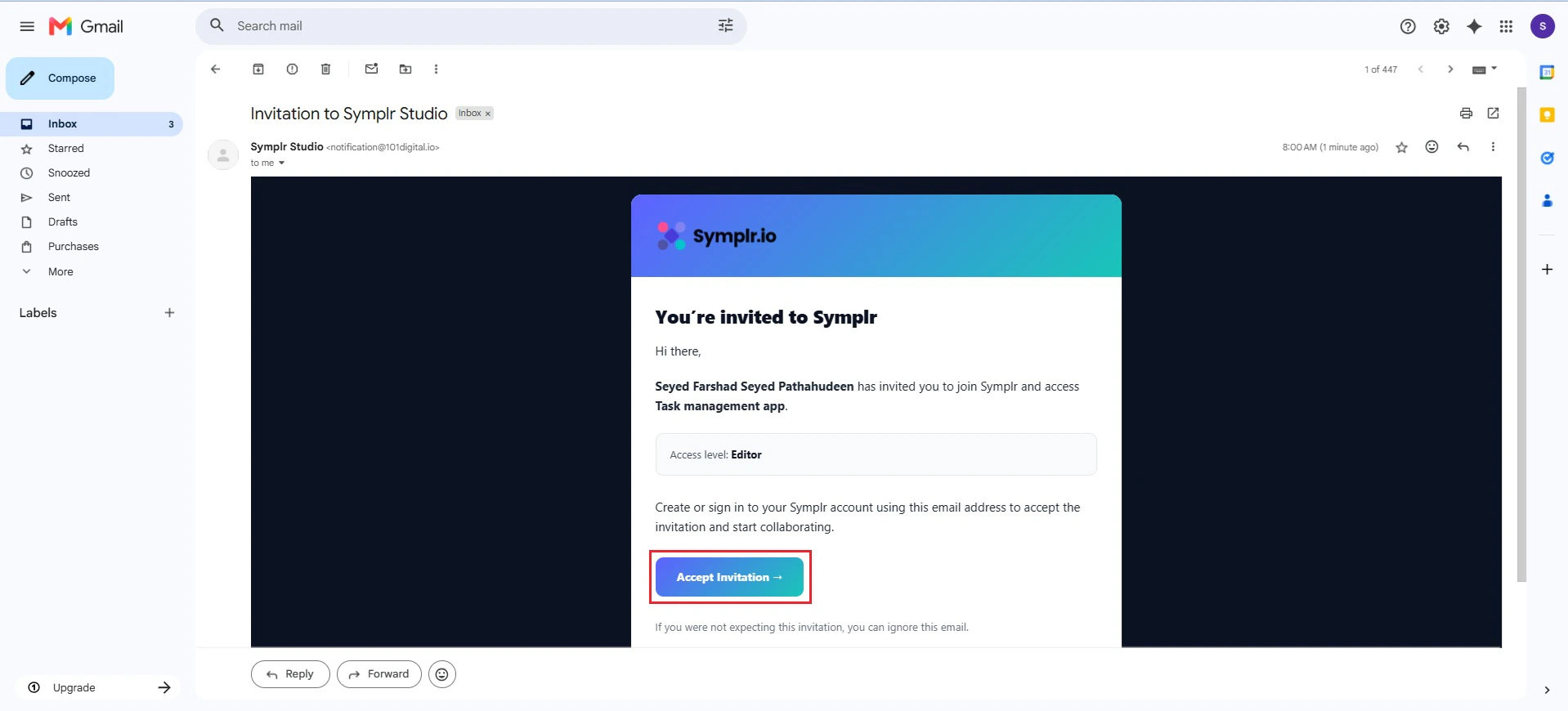 The user is redirected to Symplr to complete the sign-in process.
If the invited user is accessing Symplr for the first time, onboarding screens and introductory guidance may appear before accessing the shared project workspace.
The user is redirected to Symplr to complete the sign-in process.
If the invited user is accessing Symplr for the first time, onboarding screens and introductory guidance may appear before accessing the shared project workspace.
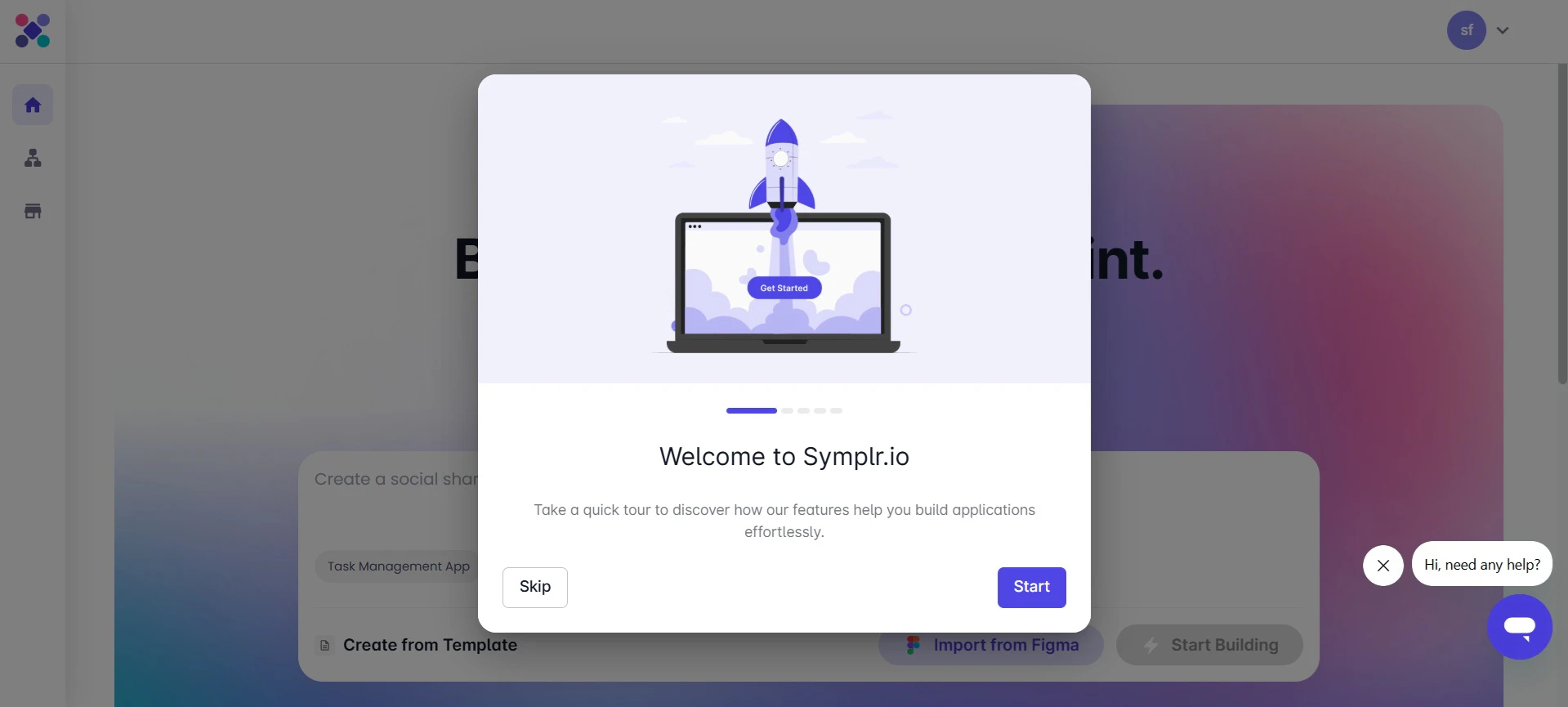 After completing sign-in and onboarding, Symplr redirects the user directly to the shared project in **Blueprint View**.
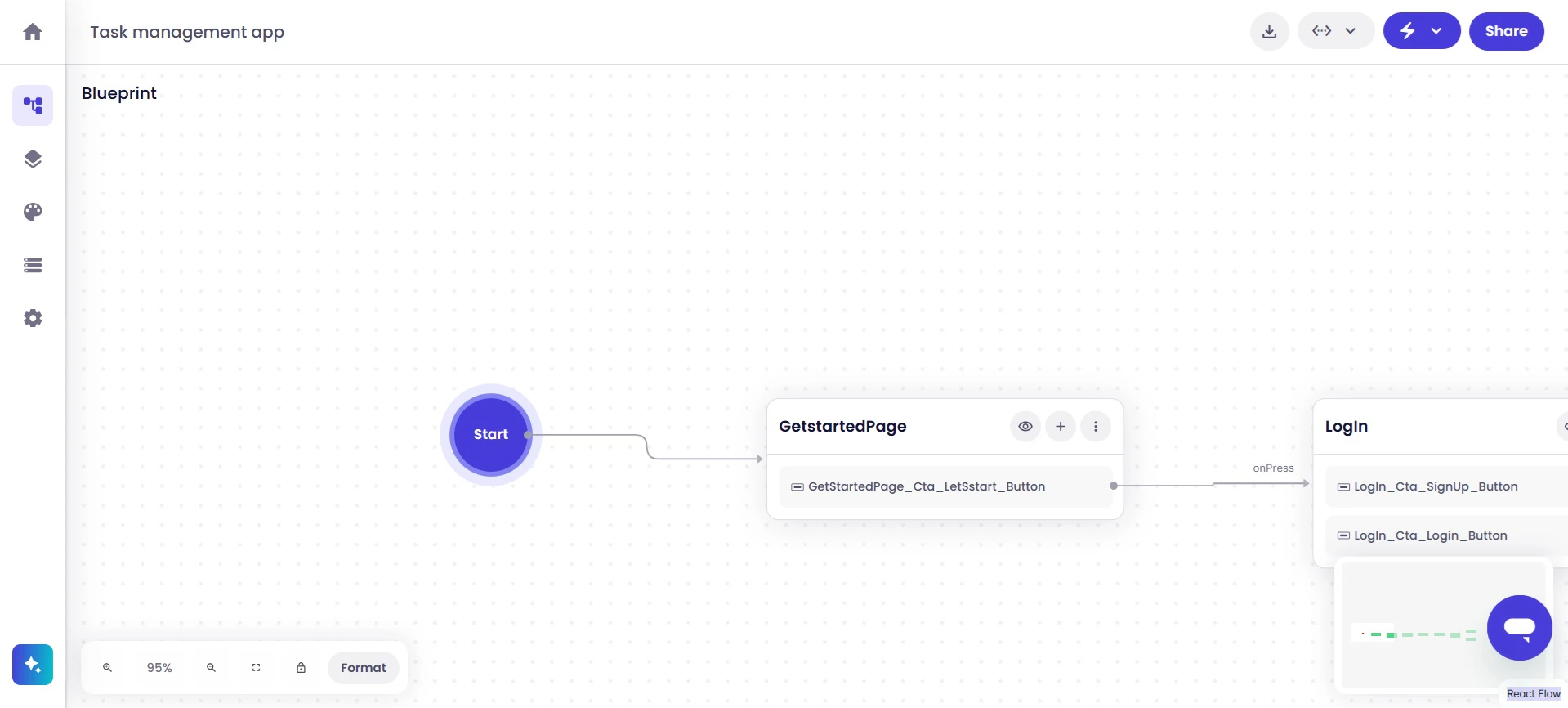 The shared project is then available for screen editing, workflow configuration, validation, and continued application development.
## Reopen the Shared Project from the Dashboard
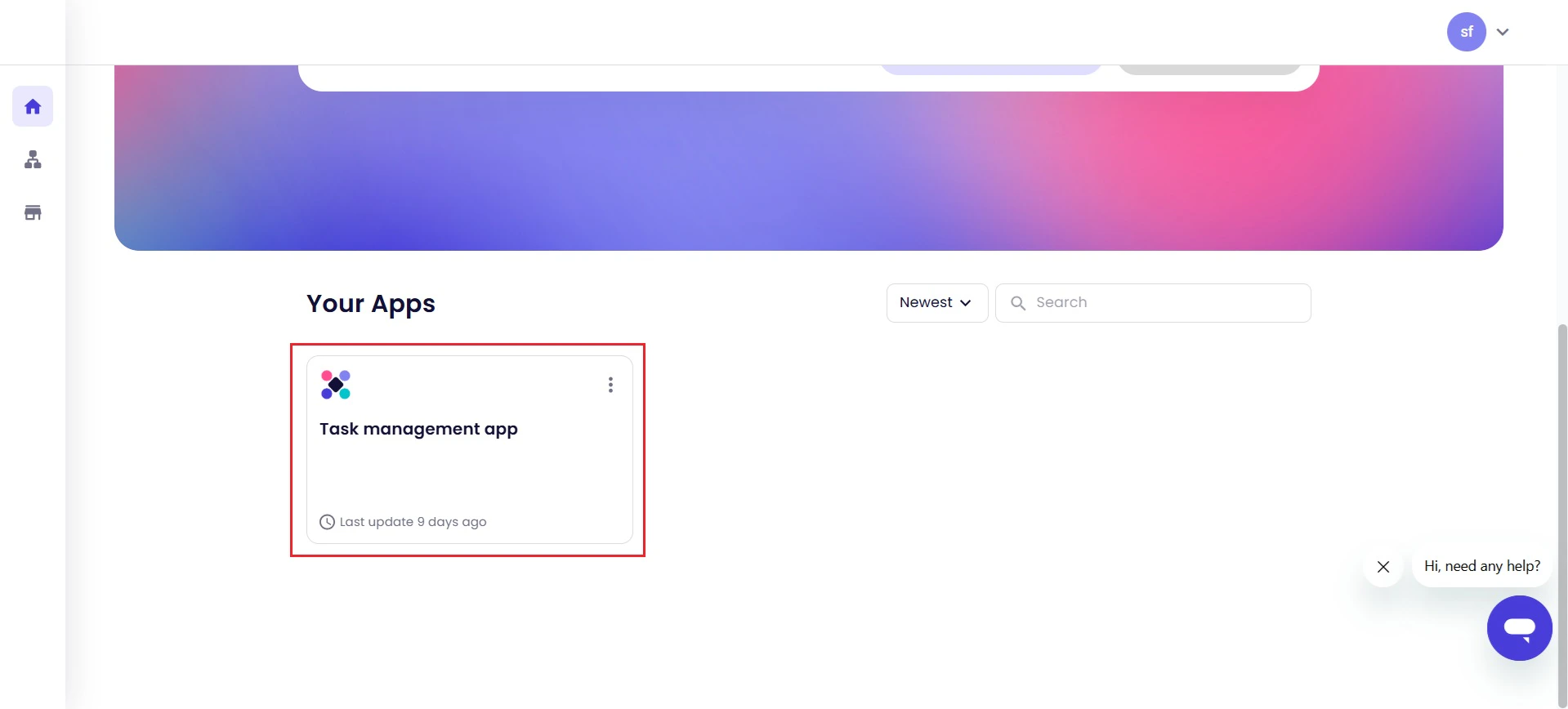
Shared projects are also available from the Symplr dashboard under the **Your Apps** section.
The shared project is then available for screen editing, workflow configuration, validation, and continued application development.
## Reopen the Shared Project from the Dashboard
Shared projects are also available from the Symplr dashboard under the **Your Apps** section.
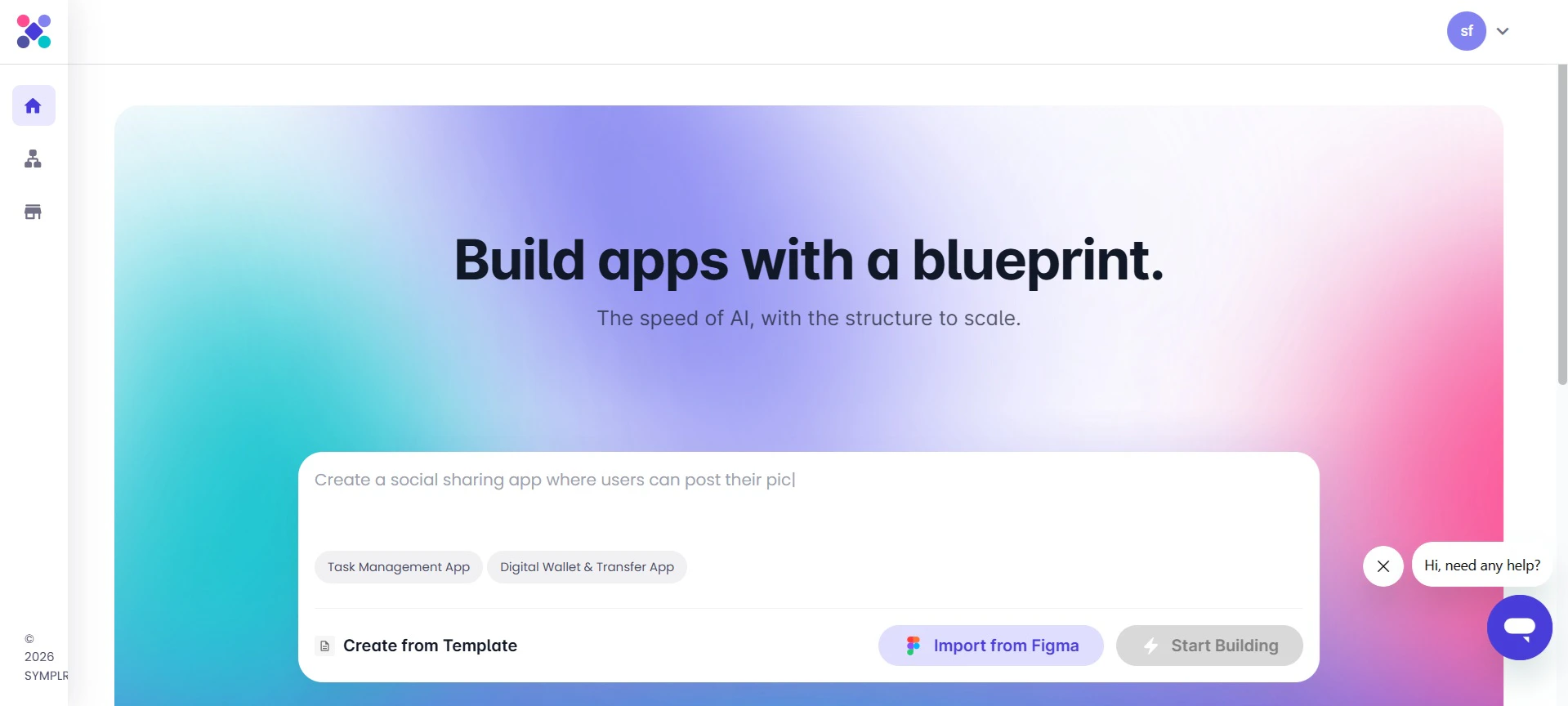 Scroll through the **Your Apps** section to locate the shared project card.
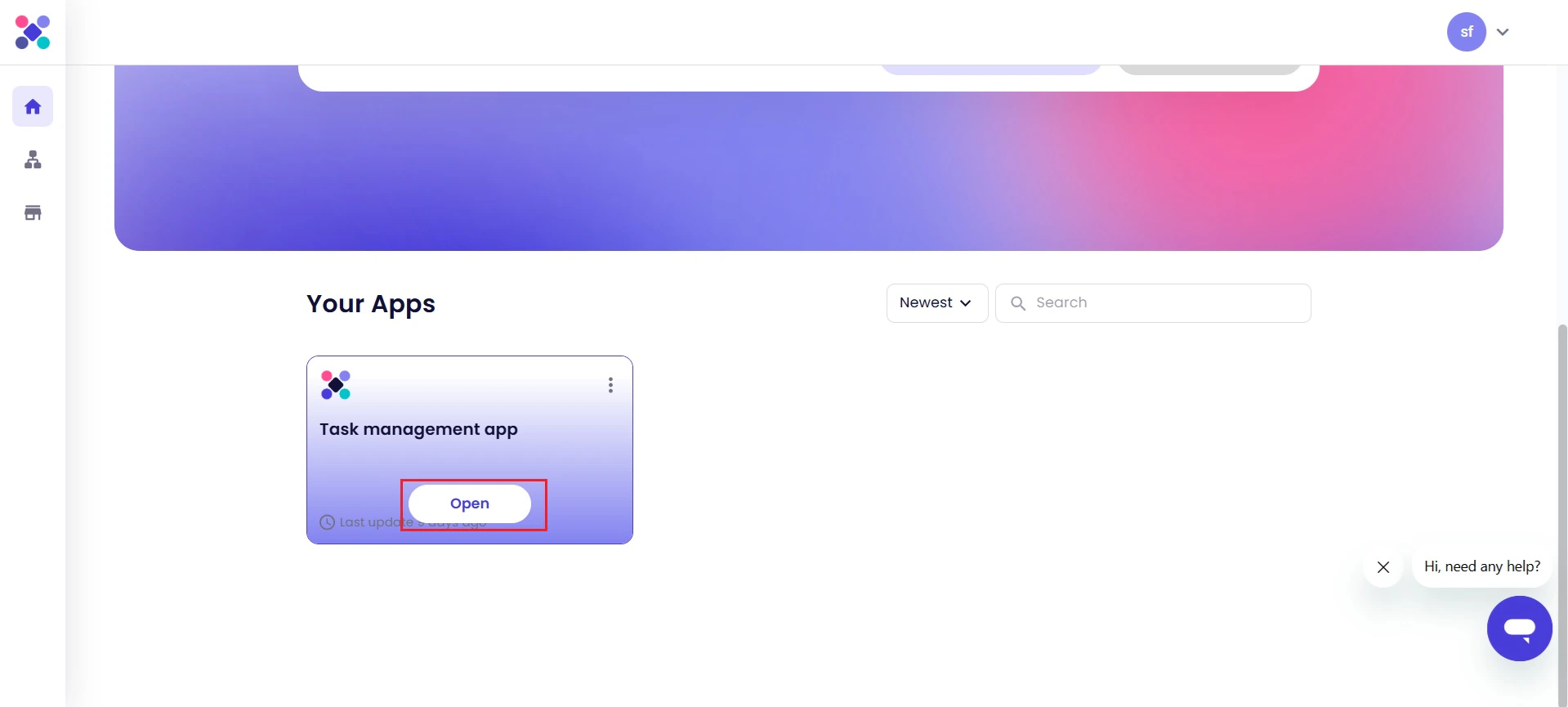
 To reopen the shared project later, click **Open** on the project card.
 ## Troubleshooting
### Invitation Email Not Received
If the invited user does not receive the invitation email:
* Verify the email address entered during sharing
* Ask the user to check spam or junk folders
* Resend the invitation if required
* Contact Symplr Support if the issue persists
### Shared Project Not Visible
If the shared project does not appear after login:
* Refresh the dashboard
* Verify the correct email account was used
* Confirm the invitation was accepted successfully
* Ask the project owner to resend the invitation if necessary
## Next Steps
After accessing the shared project, continue by editing screens, configuring workflows, validating application behavior, generating previews, downloading application code, or collaborating with additional users.
## Troubleshooting
### Invitation Email Not Received
If the invited user does not receive the invitation email:
* Verify the email address entered during sharing
* Ask the user to check spam or junk folders
* Resend the invitation if required
* Contact Symplr Support if the issue persists
### Shared Project Not Visible
If the shared project does not appear after login:
* Refresh the dashboard
* Verify the correct email account was used
* Confirm the invitation was accepted successfully
* Ask the project owner to resend the invitation if necessary
## Next Steps
After accessing the shared project, continue by editing screens, configuring workflows, validating application behavior, generating previews, downloading application code, or collaborating with additional users.