
When to Contact Support
Please contact support if you encounter any of the following:- Errors or unexpected behavior within the application
- Features not functioning as expected
- Issues related to Figma import or Blueprint View
- Challenges with configuration, workflows, or integrations
- Account or access-related concerns
Report Issues Directly from the Application
Symplr provides a built-in mechanism to report issues efficiently at the point of occurrence.- When an error message appears, a “Contact Support” button is displayed
- Click the “Contact Support” button to submit the issue
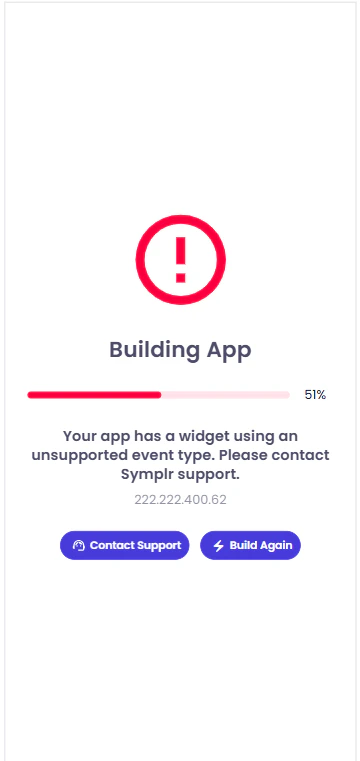
- Application ID
- Error code
- Error information
- Customer details
Before You Contact Support
Before contacting support, review available product documentation, FAQs, and product updates for known issues and guidance.How to Contact Support
In-App Support
Access support directly from within the application:- Click the Help button
- Initiate a chat with the support team
- Provide details of your issue, including screenshots, steps, or error messages
Email Support
For more detailed queries or when attachments are required, contact support via email: support@101digital.ioProvide Additional Details
When contacting support, include the following where applicable:- Project or application name
- Description of the issue
- Steps to reproduce the issue
- Screenshots or recordings
Response Time
Support requests are typically reviewed within 24–48 hours. Critical issues such as application crashes, build failures, or blocking issues may receive priority responses.For critical issues, use in-app support for faster assistance.