
Documentation Index

Fetch the complete documentation index at: https://docs.symplr.io/llms.txt

Use this file to discover all available pages before exploring further.

Developer Tools allow you to configure additional capabilities before generating and downloading application code from Symplr. These capabilities support testing, security-related protections, code export, and continued development workflows.

Before You Begin

Before using Code Generation Settings, ensure:
  • The project has been created or opened successfully
  • Application structure is ready in Blueprint View
  • You have access to Developer Tools
  • Application is ready for code generation

Open Developer Tools

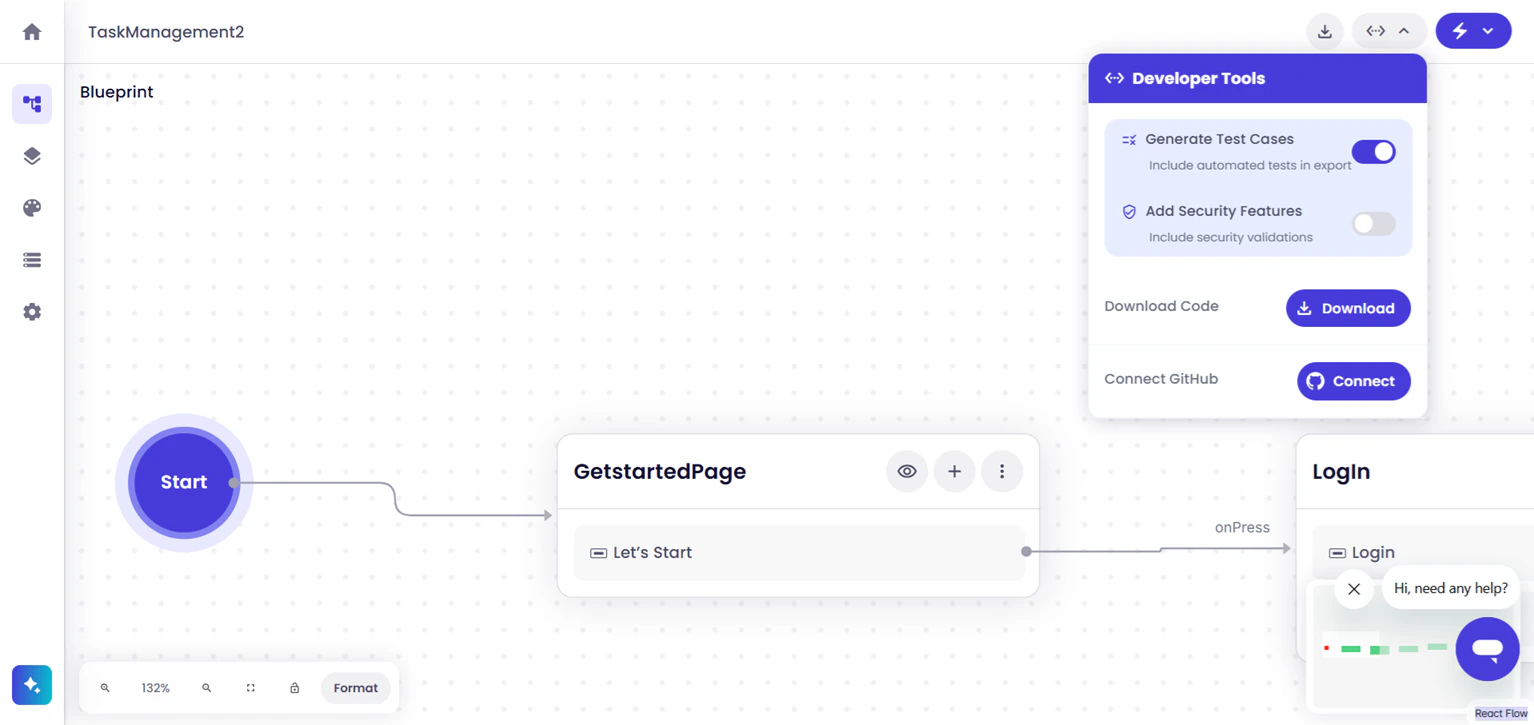
Access code generation features through the Developer Tools menu. From the top-right corner of the Blueprint View, click the Developer Tools dropdown icon.
Image
The Developer Tools menu provides access to code generation, testing, security, and code export features.

Configure Code Generation Options

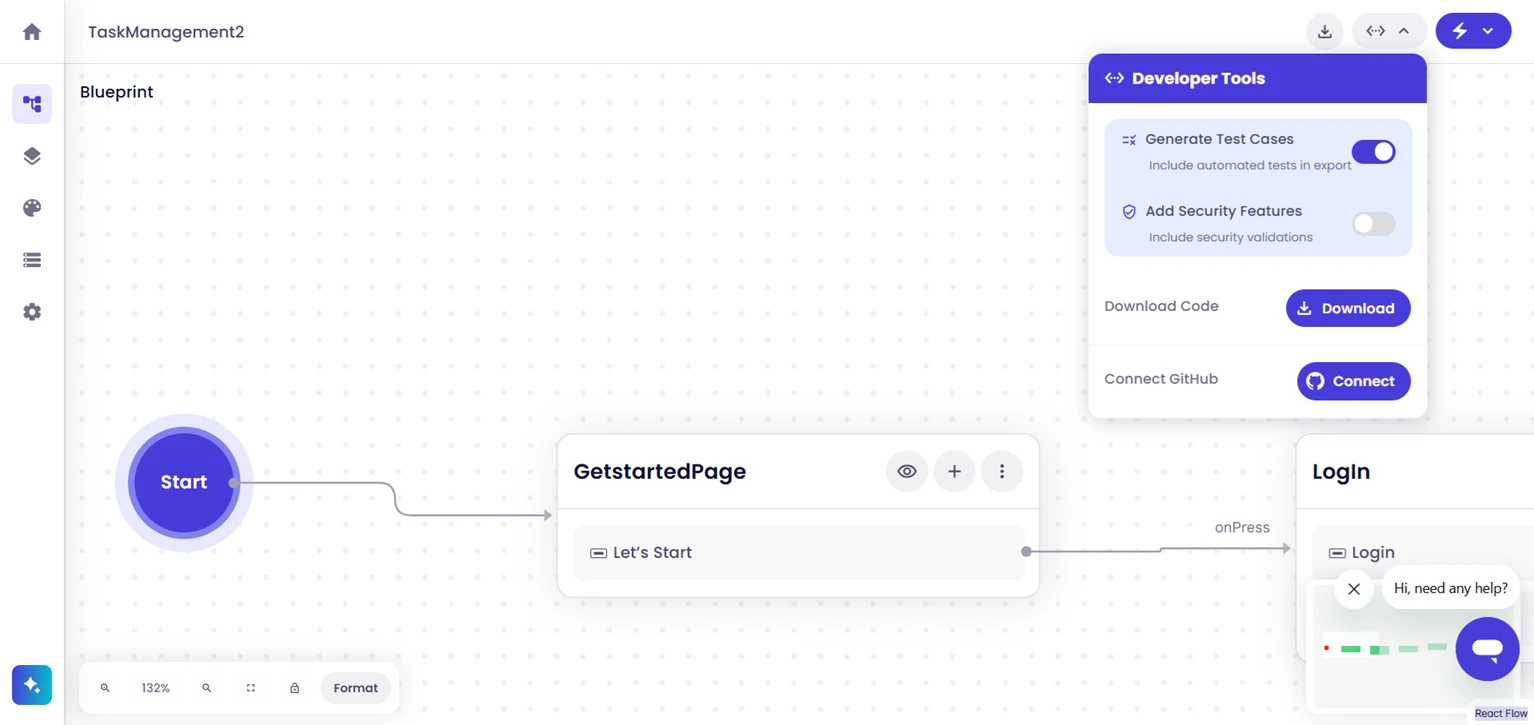
Use Developer Tools to configure testing resources, security-related protections, code export options, and GitHub integration before generating the application package.
Developer Tools
Within Developer Tools, the following capabilities are available:
  • Generate Test Cases — Includes generated test resources within the exported application package
  • Add Security Features — Includes additional security-related protections during application generation
  • Download Code — Generates and exports the application source code package
  • Connect GitHub — Connects the project to GitHub for version control and collaboration workflows

Generate and Download Code

After selecting the required generation options, proceed with downloading the application code package using the Download button available within Developer Tools. Symplr generates the source package using the selected configuration options and prepares it for delivery. The generated code package is delivered to your registered email address, allowing continued local development and customization. For additional details about downloading generated application packages, see Download Code.

Next Steps

After downloading the code package, you can continue by validating generated test resources, running the application locally, integrating external services, configuring authentication, or extending application functionality and workflows.