
Before You Begin
Before running the application on a physical device, ensure the project has been built successfully in Blueprint View and Expo Go is installed on the mobile device.Run the Application on Your Device
Open your project in Blueprint View and ensure the latest build is complete. From the preview screen, select Run App on Your Device. A QR code will be generated for mobile access.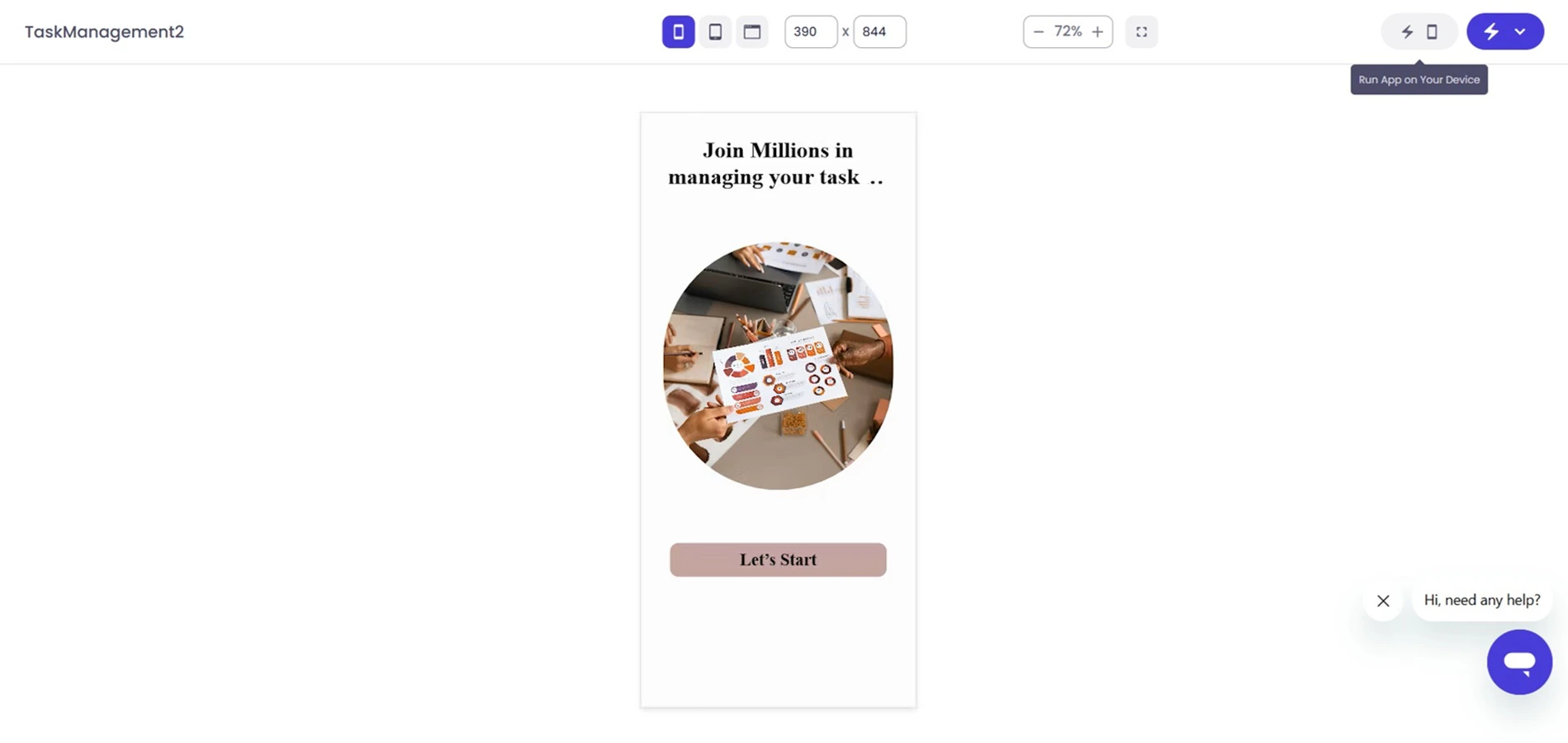
Install Expo Go
Symplr displays a QR code together with connection instructions for the mobile device.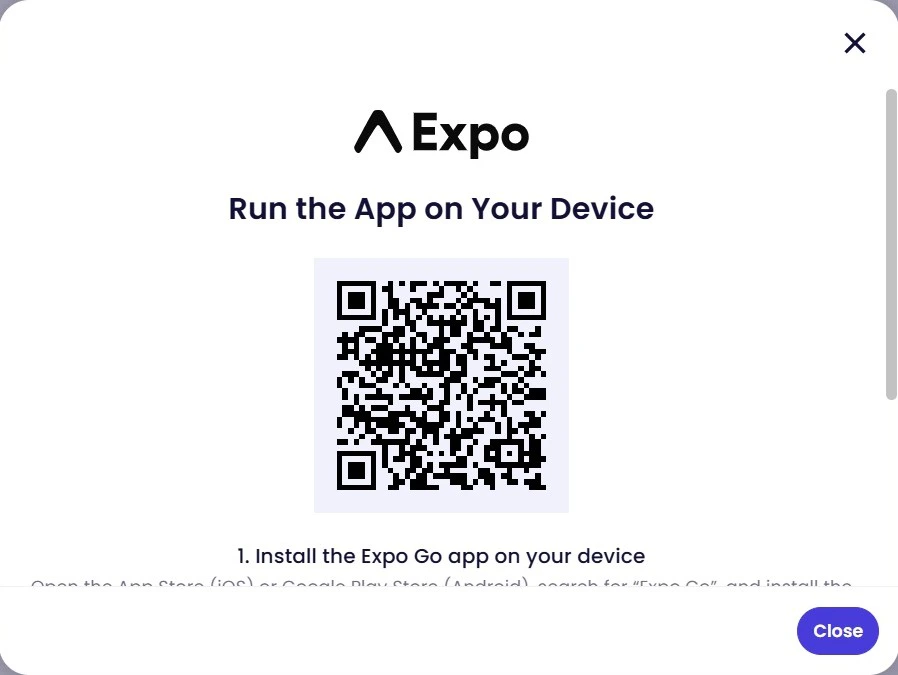
- iOS: App Store
- Android: Google Play Store
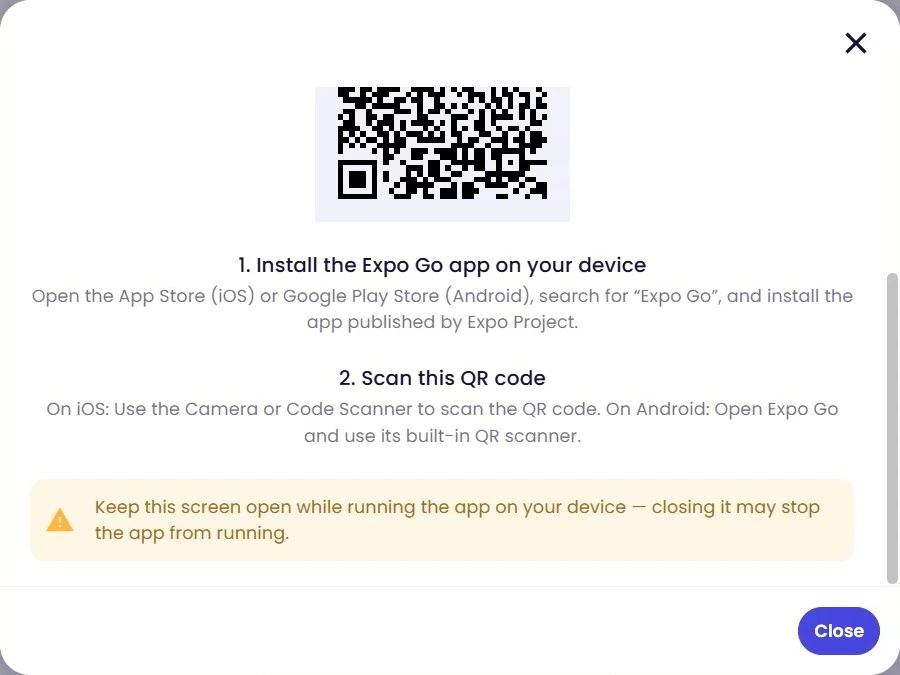
Keep this screen open while running the application on your device. Closing the screen may stop the application from running.
Scan the QR Code
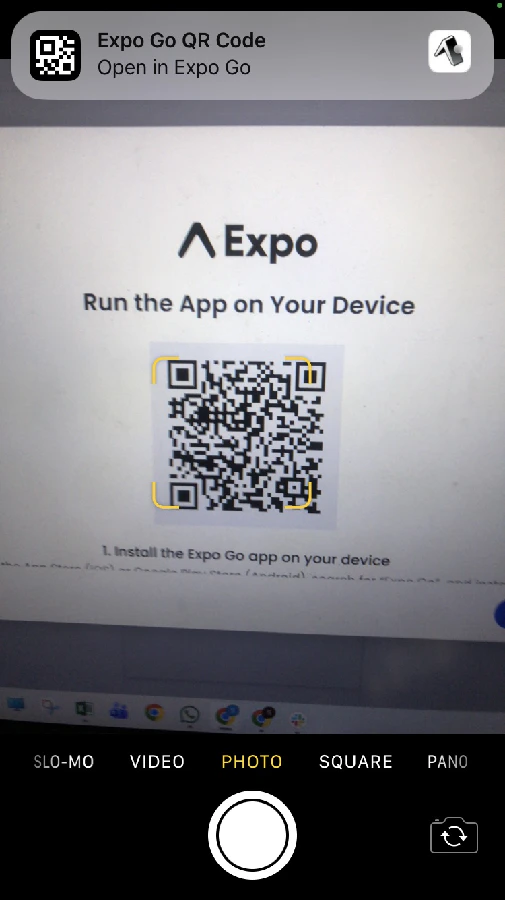
Open Expo Go on your mobile device and scan the QR code.iOS Devices
- Open the Camera or Code Scanner
- Scan the QR code displayed in Symplr
- Tap the prompt to open the application in Expo Go
Android Devices
- Open the Expo Go application
- Use the built-in QR scanner
- Scan the QR code displayed in Symplr
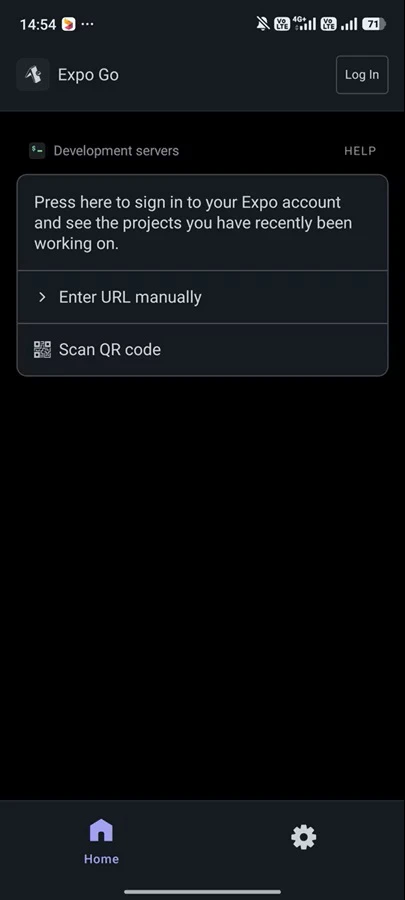
Launch and Validate Your Application
Once connected, the application loads directly on the mobile device and becomes available for validation and testing. Validate layouts, navigation flows, responsiveness, and user interactions directly on the physical device.iOS Example
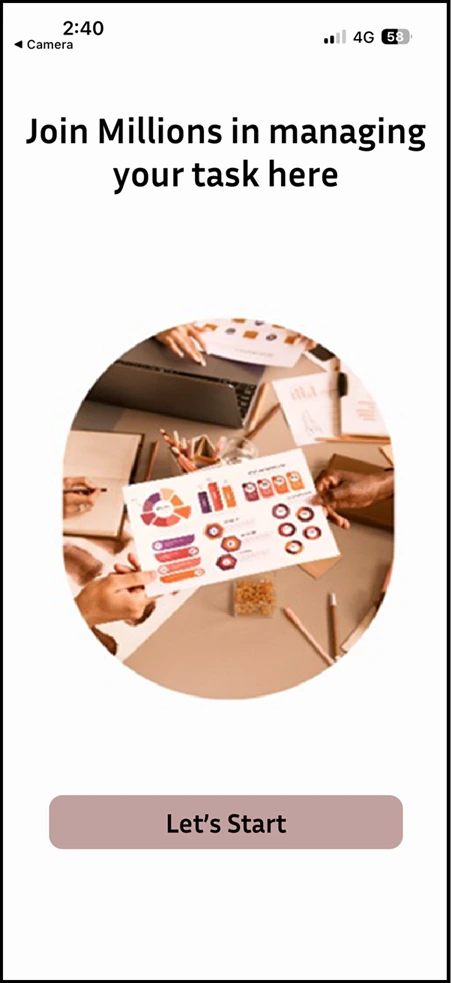
Android Example
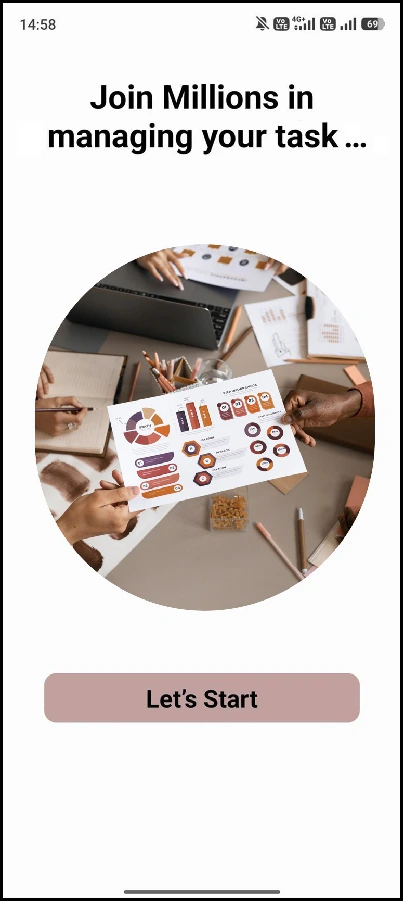
- Review layouts and responsiveness
- Validate navigation flows
- Test forms, buttons, and interactions
- Verify overall usability and application behavior
Troubleshooting
QR Code Does Not Scan
- Ensure your mobile device camera permissions are enabled
- Make sure the QR code is fully visible on screen
- Verify that your mobile device has internet connectivity
Application Stops Running
If the application stops unexpectedly:- Ensure the Symplr preview session remains open
- Rebuild the application if required
- Re-scan the QR code using Expo Go