Before You Begin
Before managing projects in Symplr, ensure you have access to the workspace and the required permissions.Access the Projects Dashboard
After signing in to Symplr, the Projects Dashboard displays all available application projects within your workspace. Projects are displayed as cards containing project details, recent updates, and available management actions.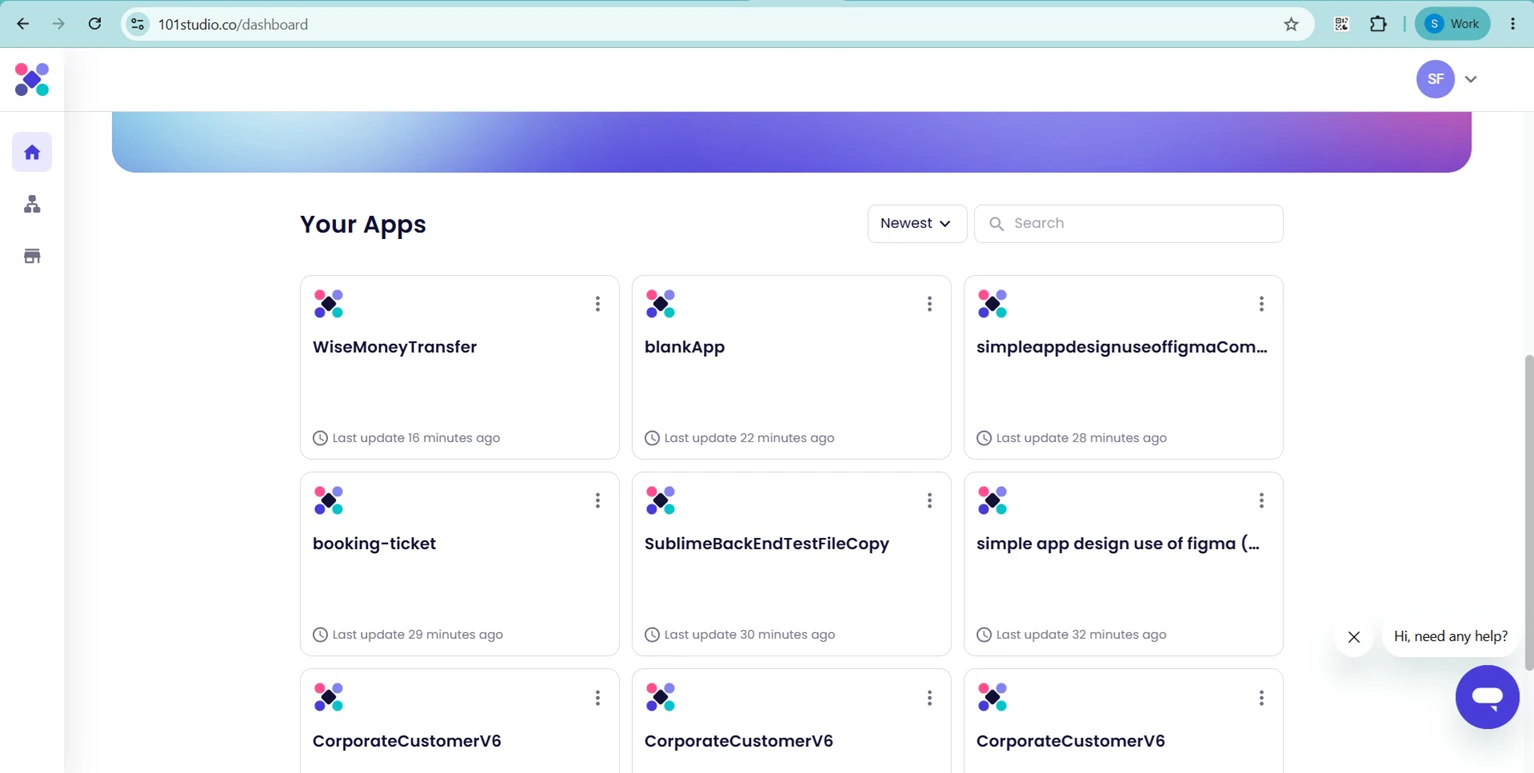
Create a New Project
Symplr supports multiple workflows for creating projects using different application sources.Create a Project from Figma
To generate a project using an existing Figma design, select the Import from Figma option from the project creation section.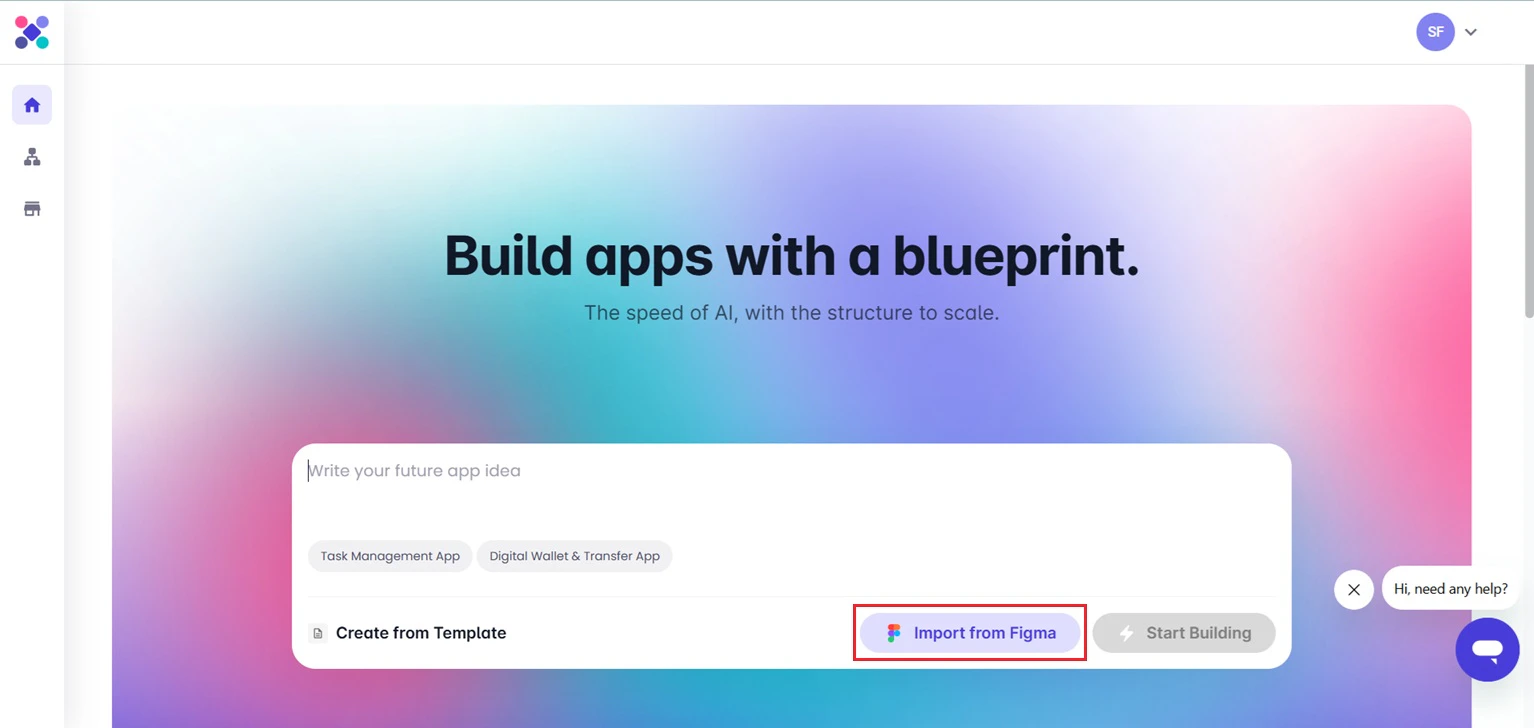
Create a Project from a Template
To begin using a predefined application structure, select the Create from Template option.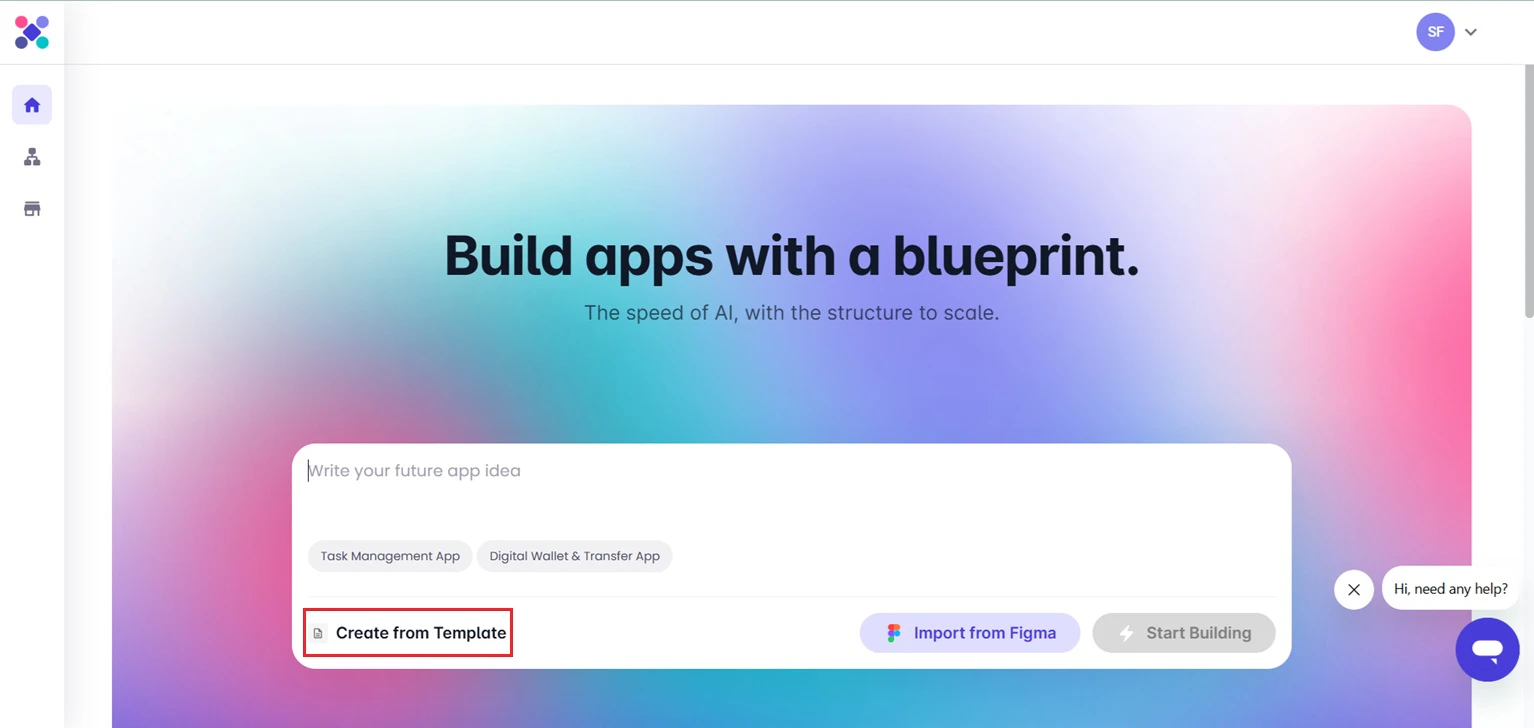
Create a Project from an AI Prompt
To generate a project using an application description or prompt, enter the application description and click Start Building.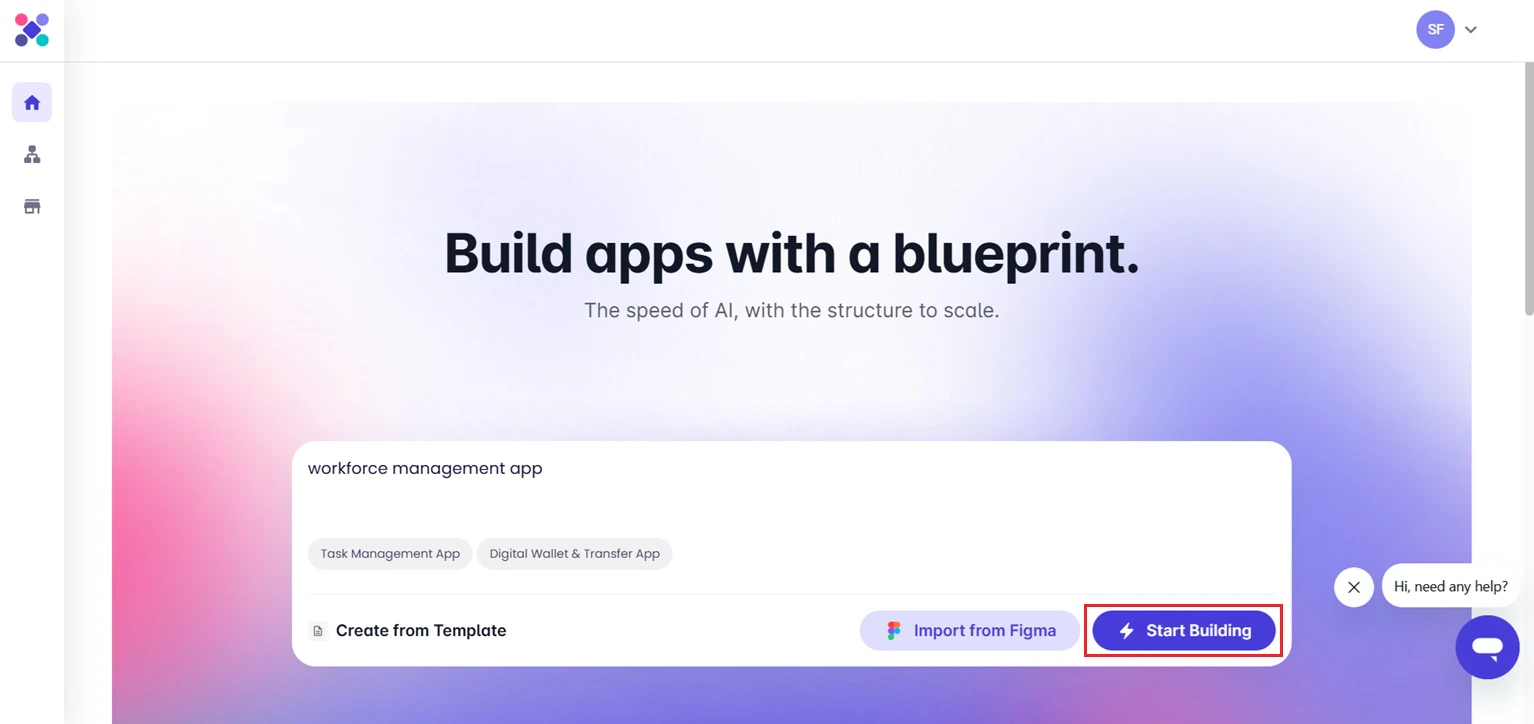
Search Projects
To quickly locate a specific project, use the search field available above the project list.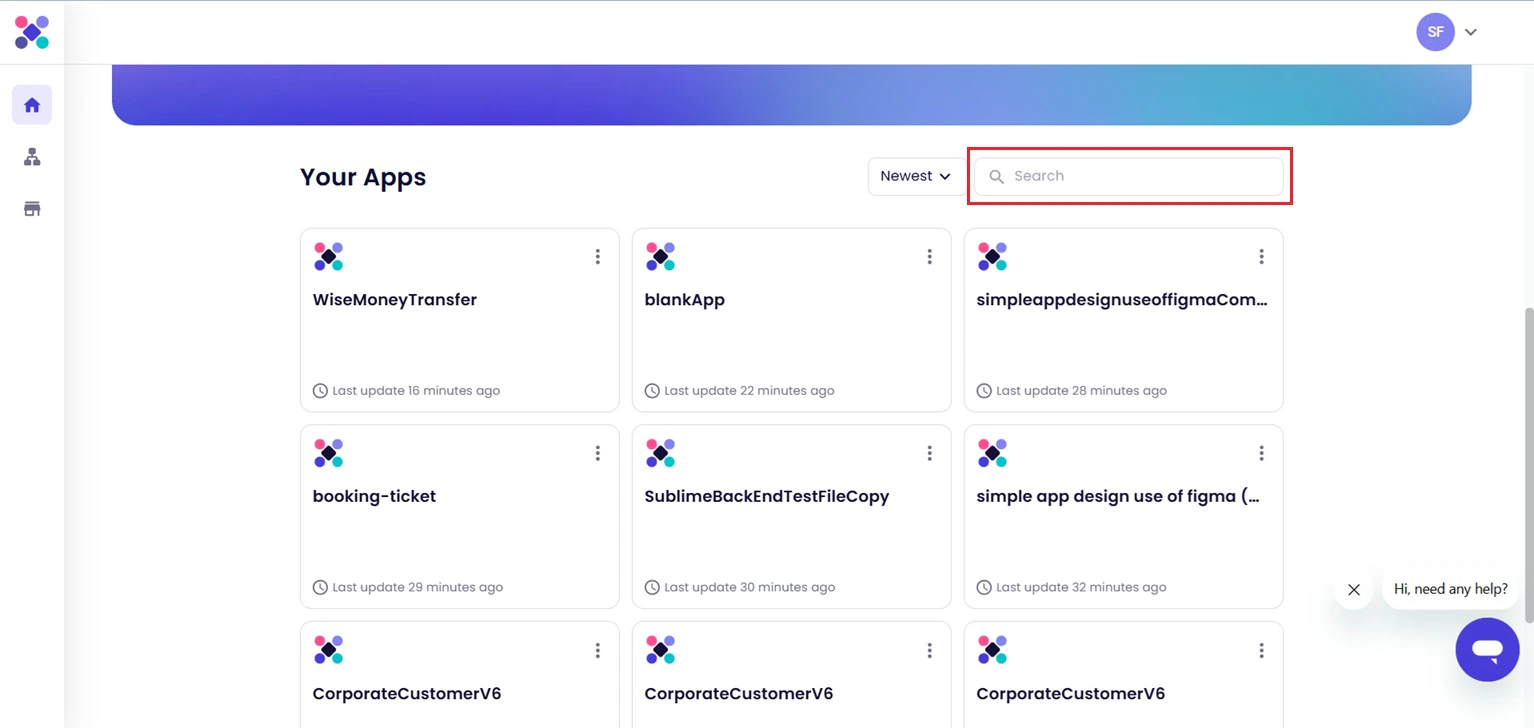
Sort Projects
Projects can be organized using the sorting options available within the dashboard.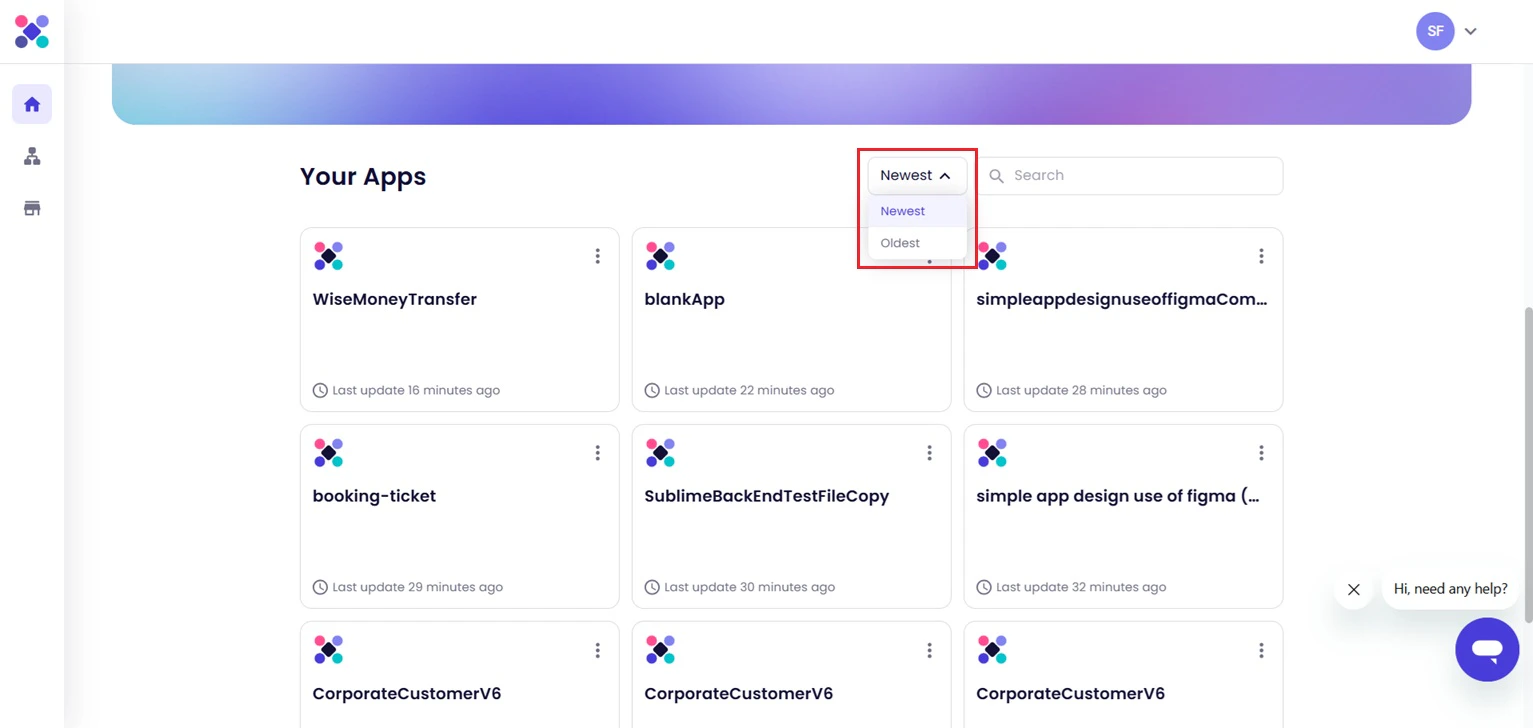
- Newest
- Oldest
Open an Existing Project
To continue working on an existing application, select the required project card from the Projects Dashboard. Opening a project loads the application in Blueprint View, where screens, workflows, and application configurations can continue to be edited.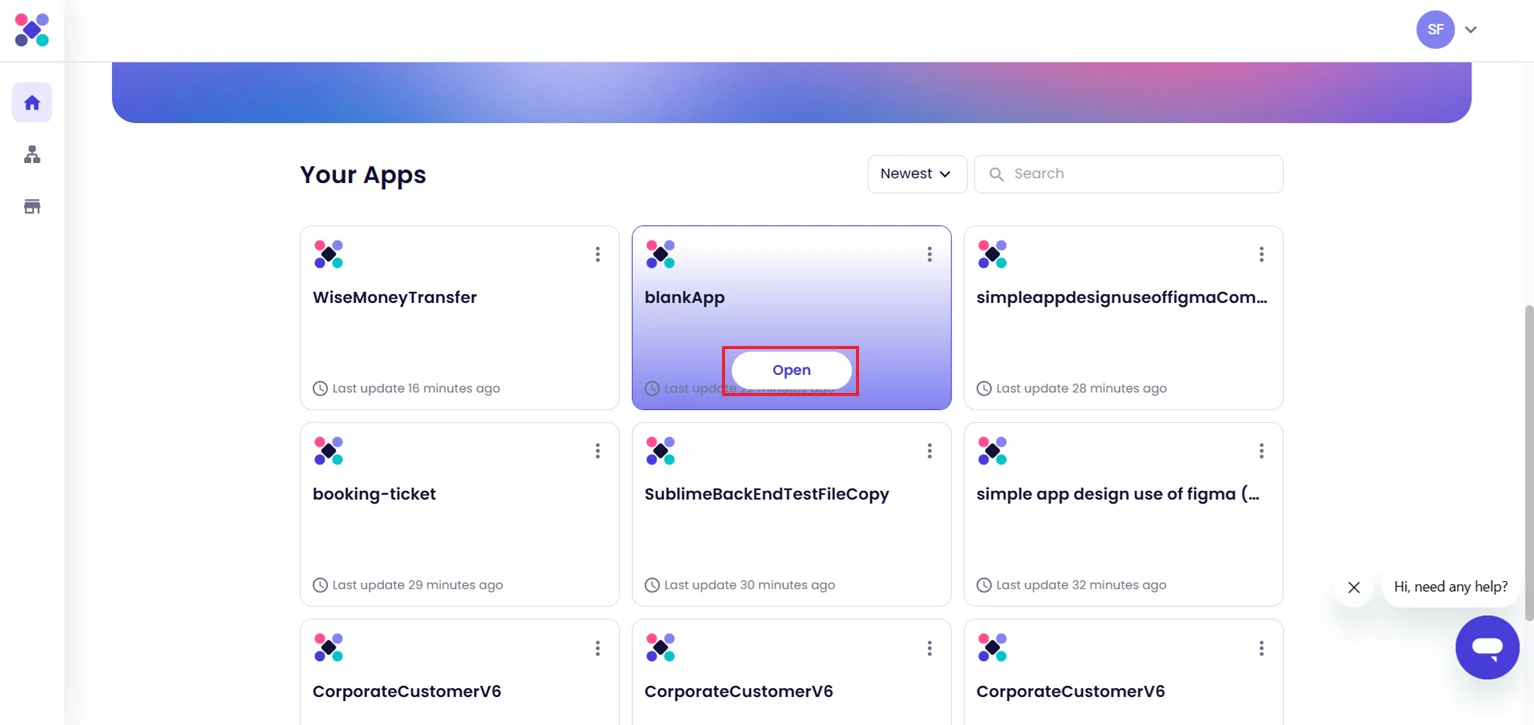
Delete a Project
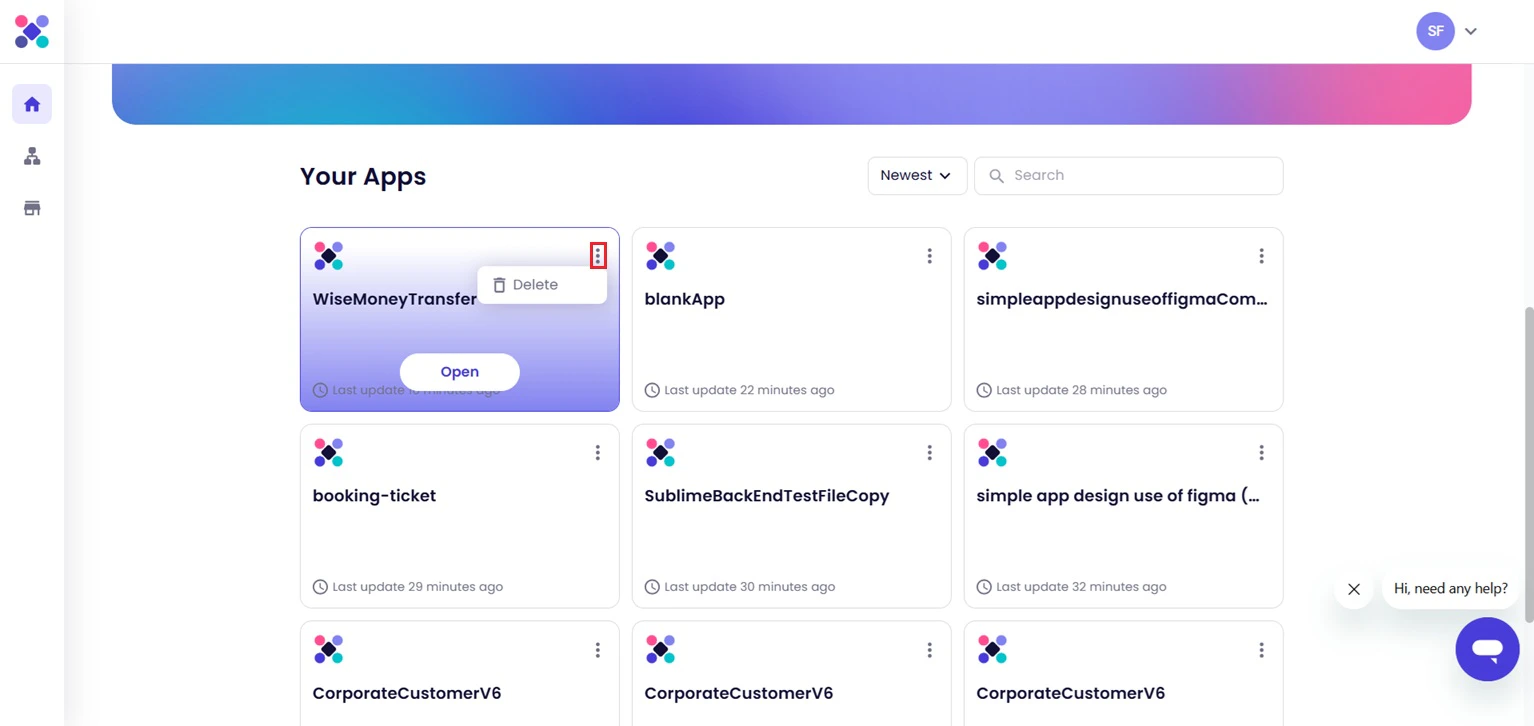
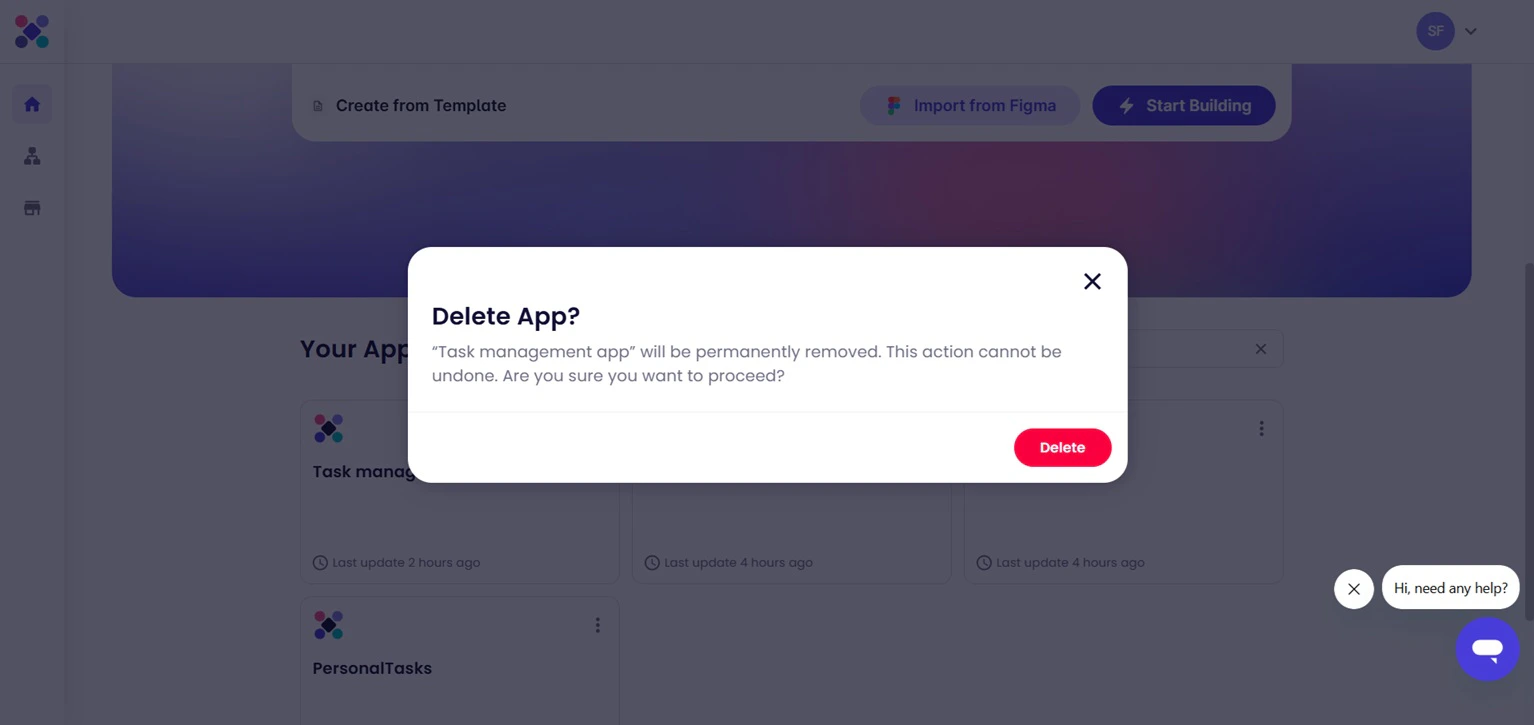
Project management options are available from the three-dot menu displayed on each project card.