
Documentation Index

Fetch the complete documentation index at: https://docs.symplr.io/llms.txt

Use this file to discover all available pages before exploring further.

Symplr allows applications to be built and previewed directly within the platform before downloading or deploying the generated application package. The Build & Run capability helps validate application screens, navigation flows, layouts, forms, interactions, and overall application behavior during preview.

Before You Begin

Before building the application, ensure the project contains configured screens, workflows, and navigation within Blueprint View.

Access the Build & Run Menu

Open your project in the Blueprint View and access the Build & Run dropdown from the top right corner of the workspace.
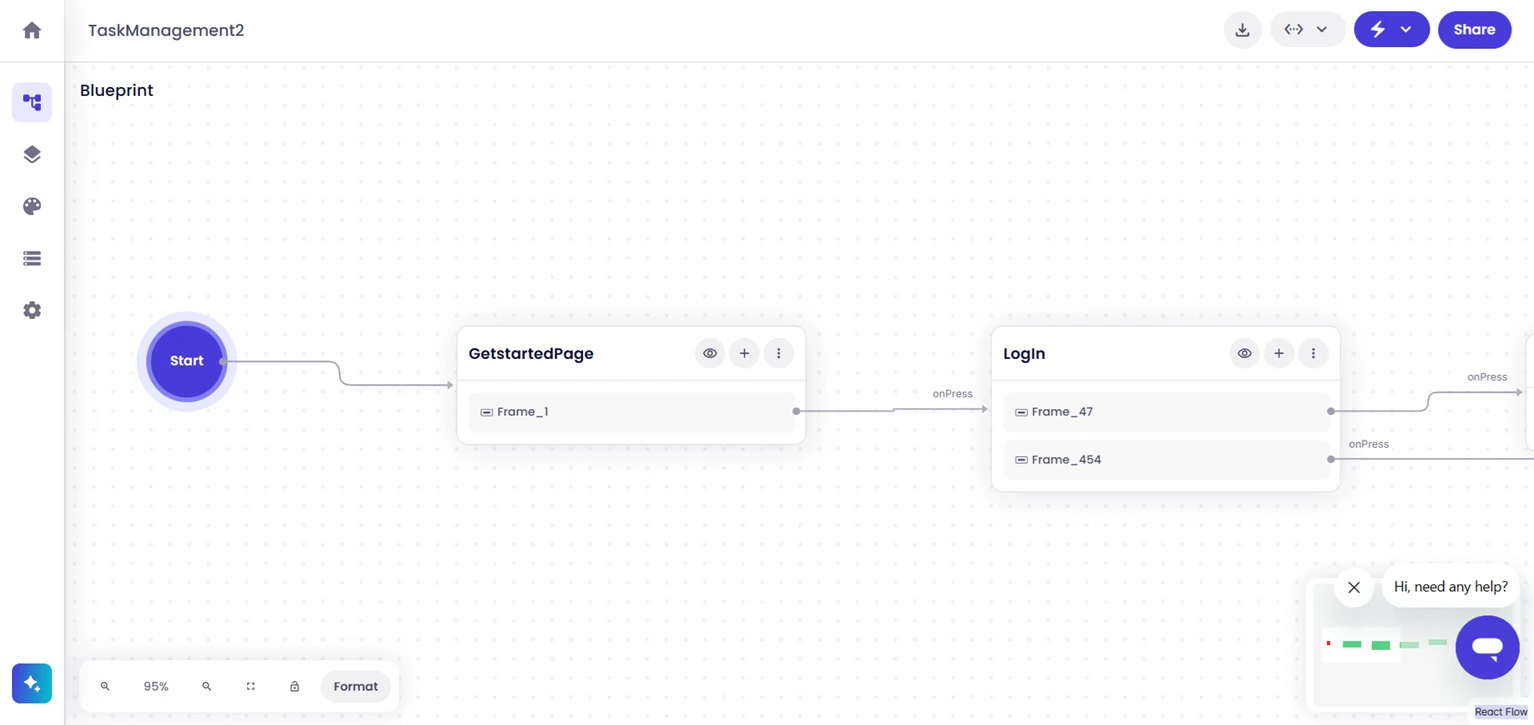
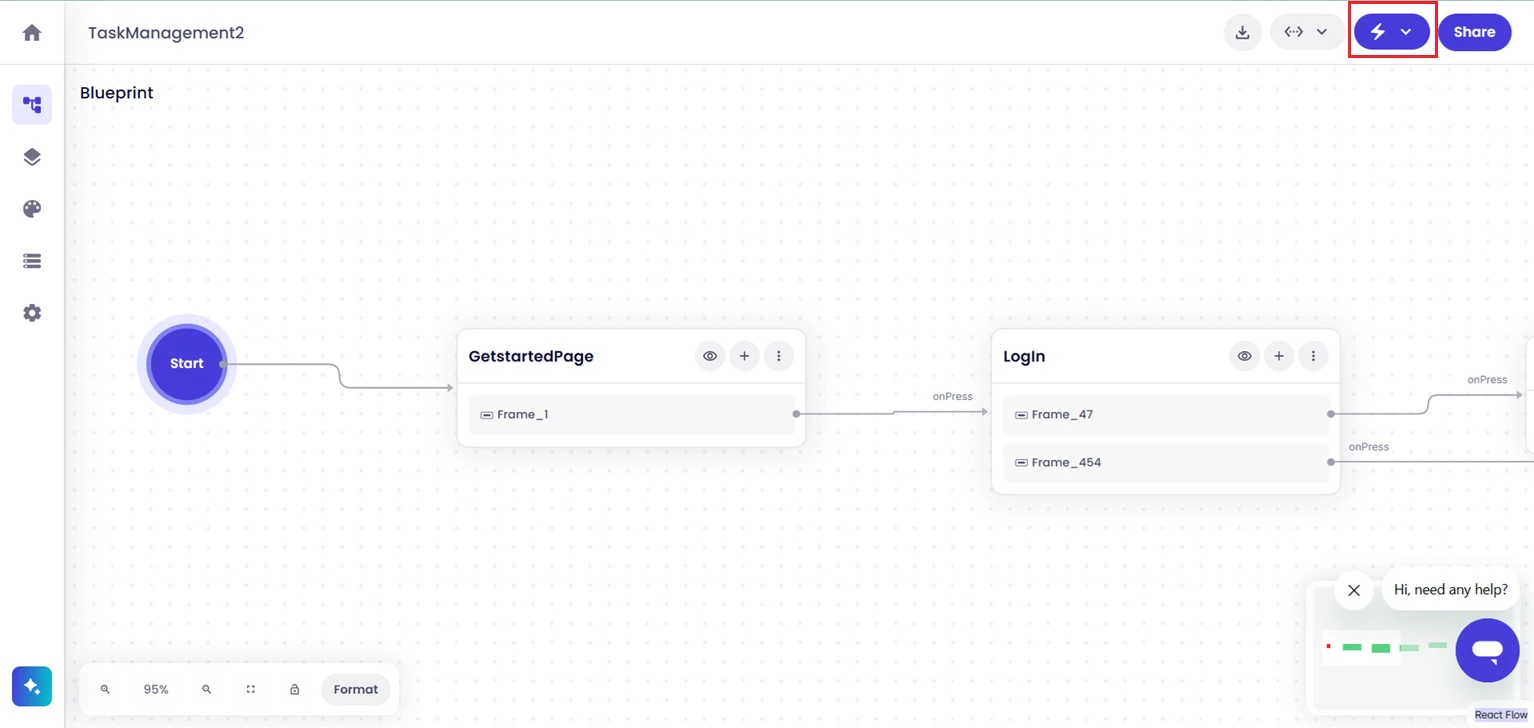
1 Blueprint View Before Build
The Build & Run option provides access to application preview and validation functions.
2 Build & Run Option

Start a New Application Build

From the Build & Run menu, select Build under Build & Run New App to generate an interactive application preview.
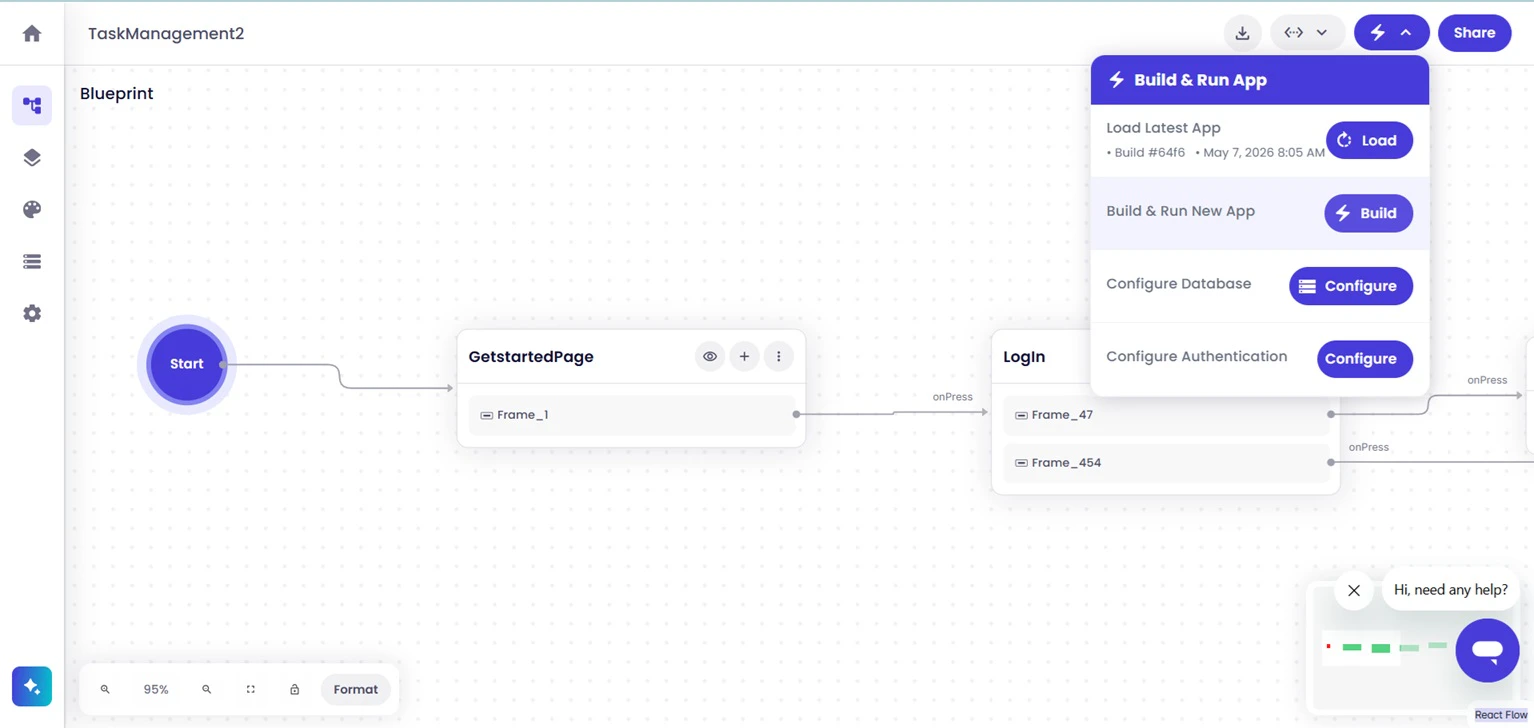
3 Build & Run button
Symplr begins generating the application preview using the current application structure and configuration. Build duration may vary based on application size and complexity.

Preview the Running Application

Once the build completes successfully, the application preview opens directly within the browser.
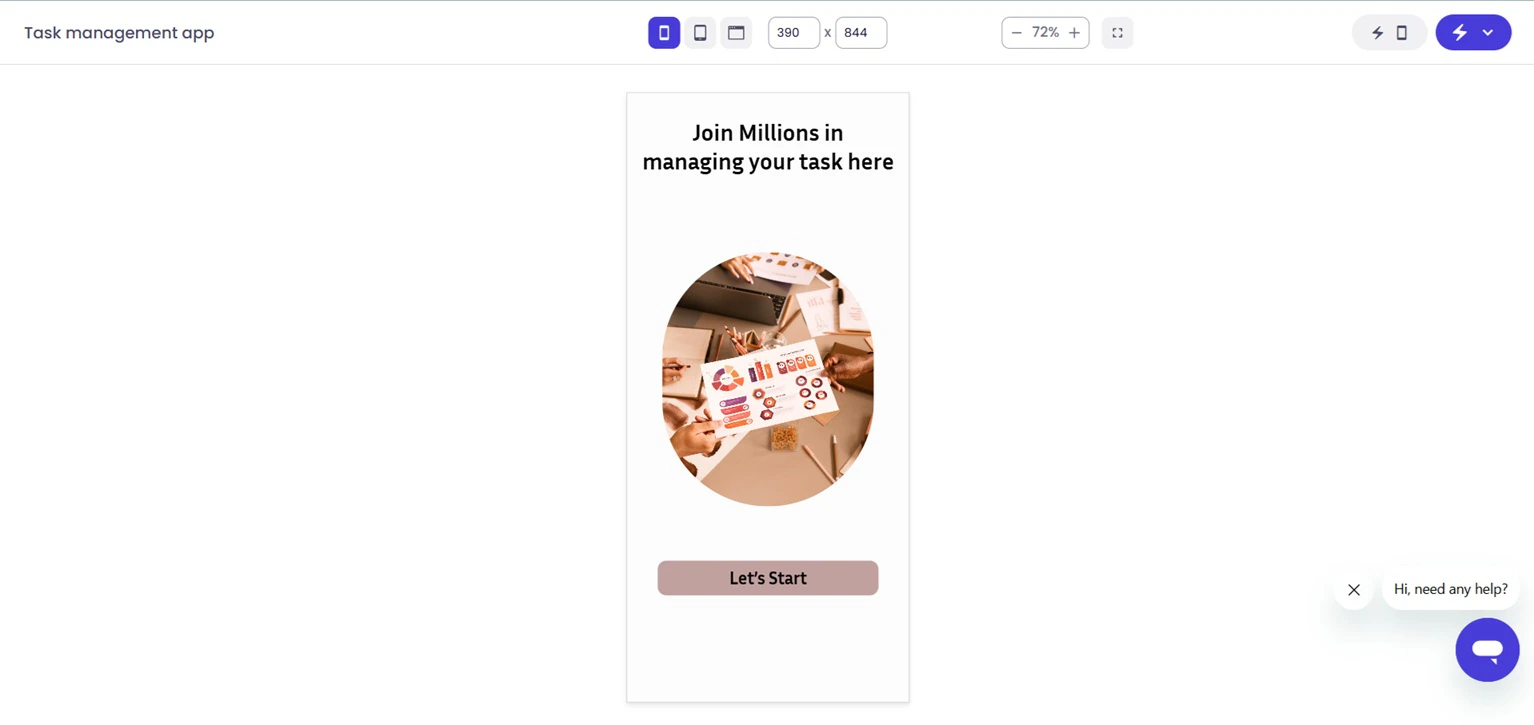
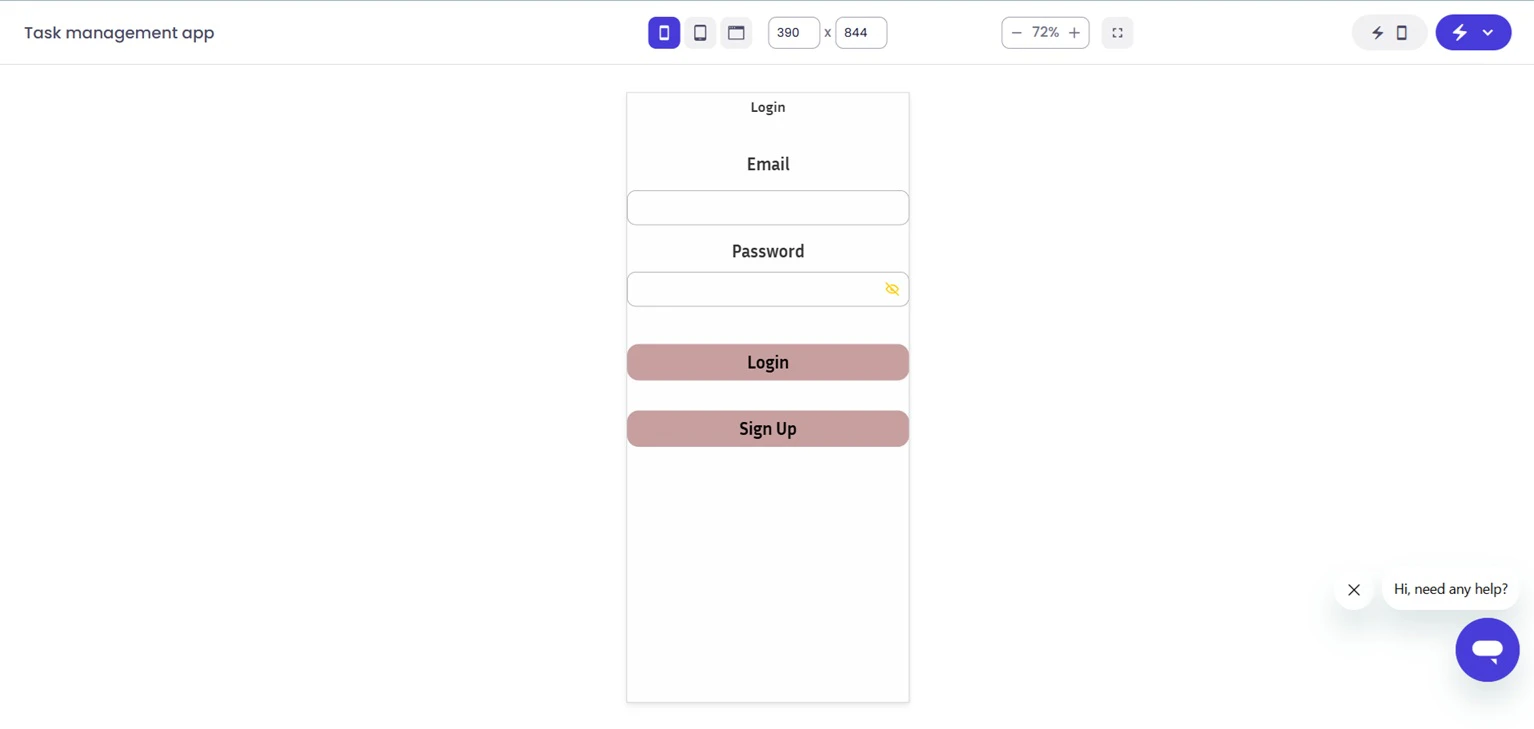
6 Successful application preview running in browser
Use the running application preview to validate layouts, navigation flows, forms, workflows, and overall application behavior.
7 Validation example

Load a Previously Generated Build

If a previous application build exists, Symplr allows the latest generated preview to be loaded directly without rebuilding the application. From the Build & Run menu, click the Load button under Load Latest App.
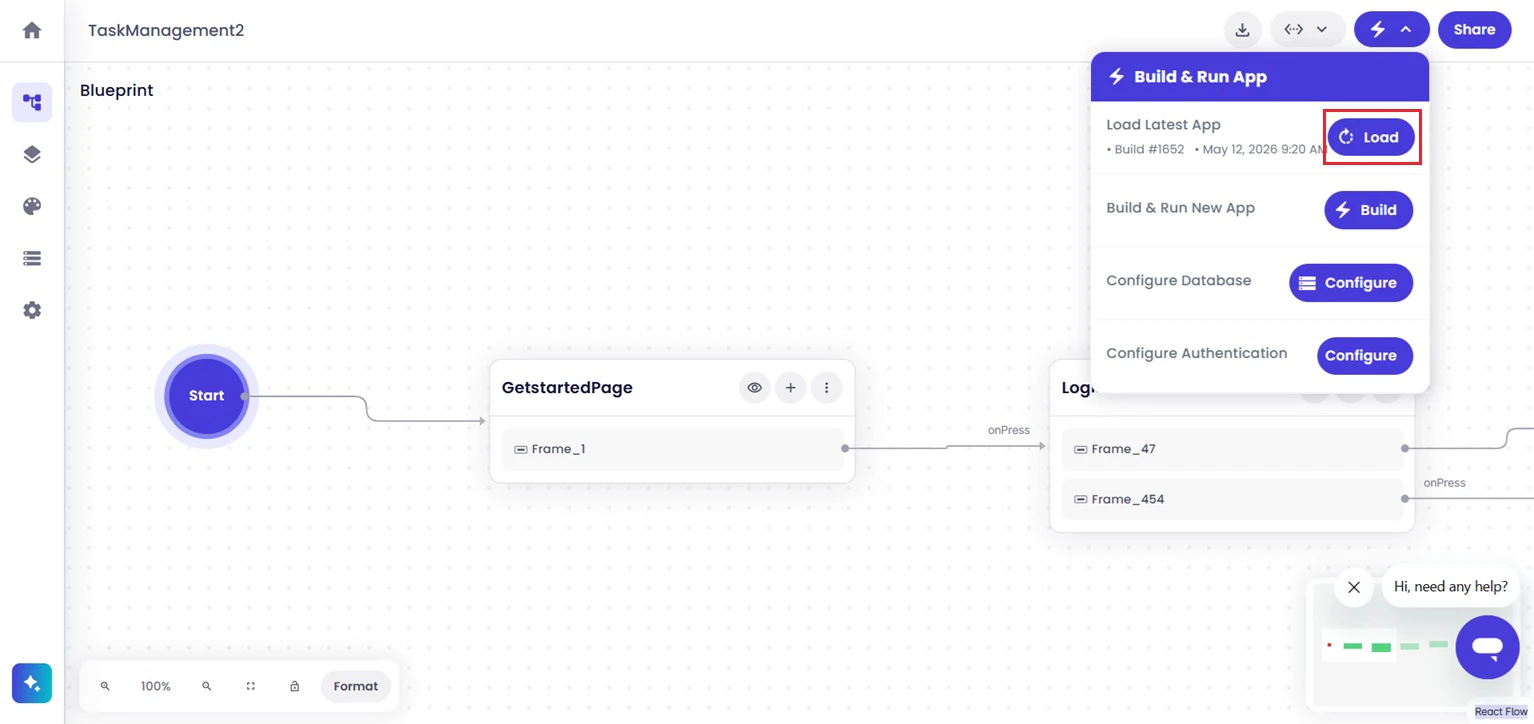
5 Load Latest App
This opens the most recently generated application preview for continued validation and testing.

Handle Build Failures

In some situations, unsupported configurations, widgets, workflows, or application states may prevent the application preview from building successfully. When a build issue occurs, Symplr displays the build status together with the related error information.
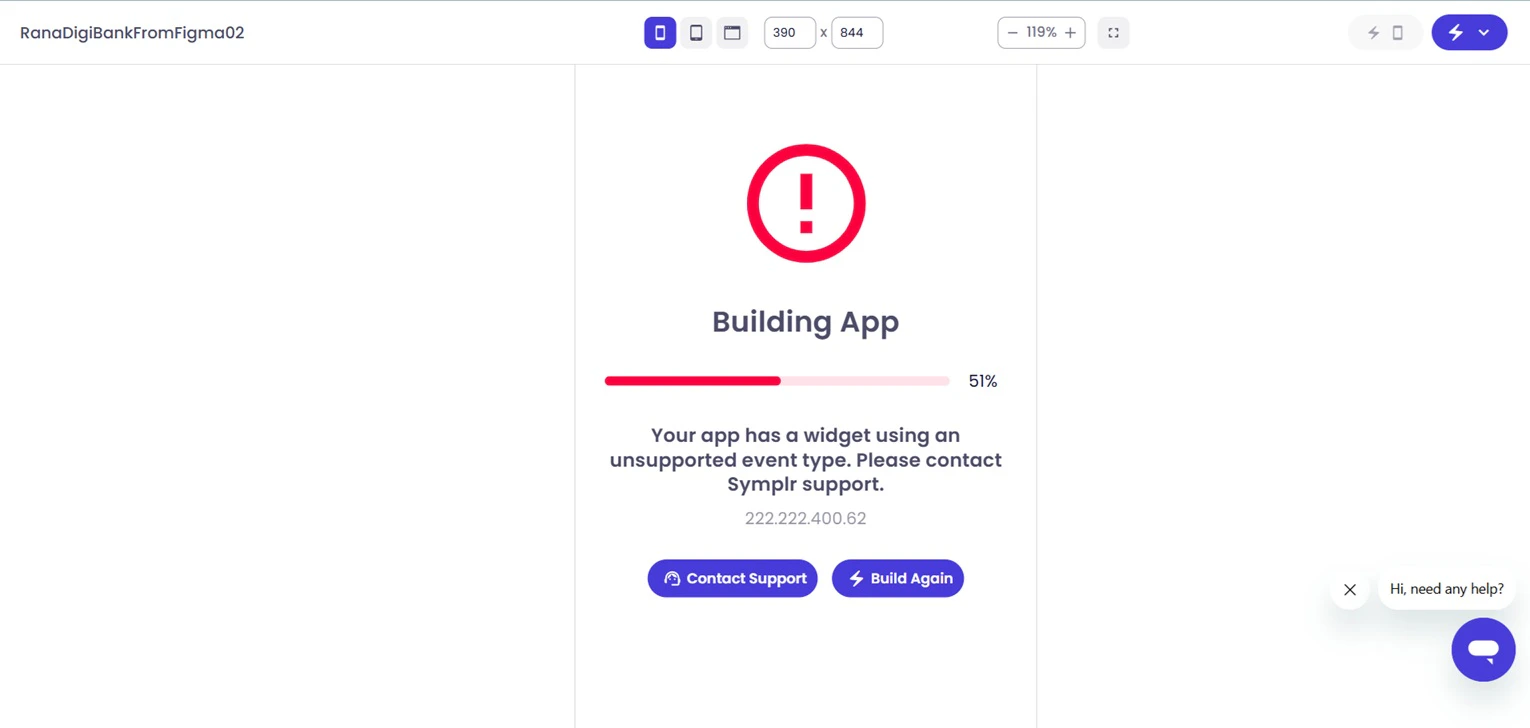
8 Build failed message
The error details help identify issues that may require additional troubleshooting or application updates.

Rebuild the Application

After correcting the identified issue, click the Build Again button to restart the application build process.
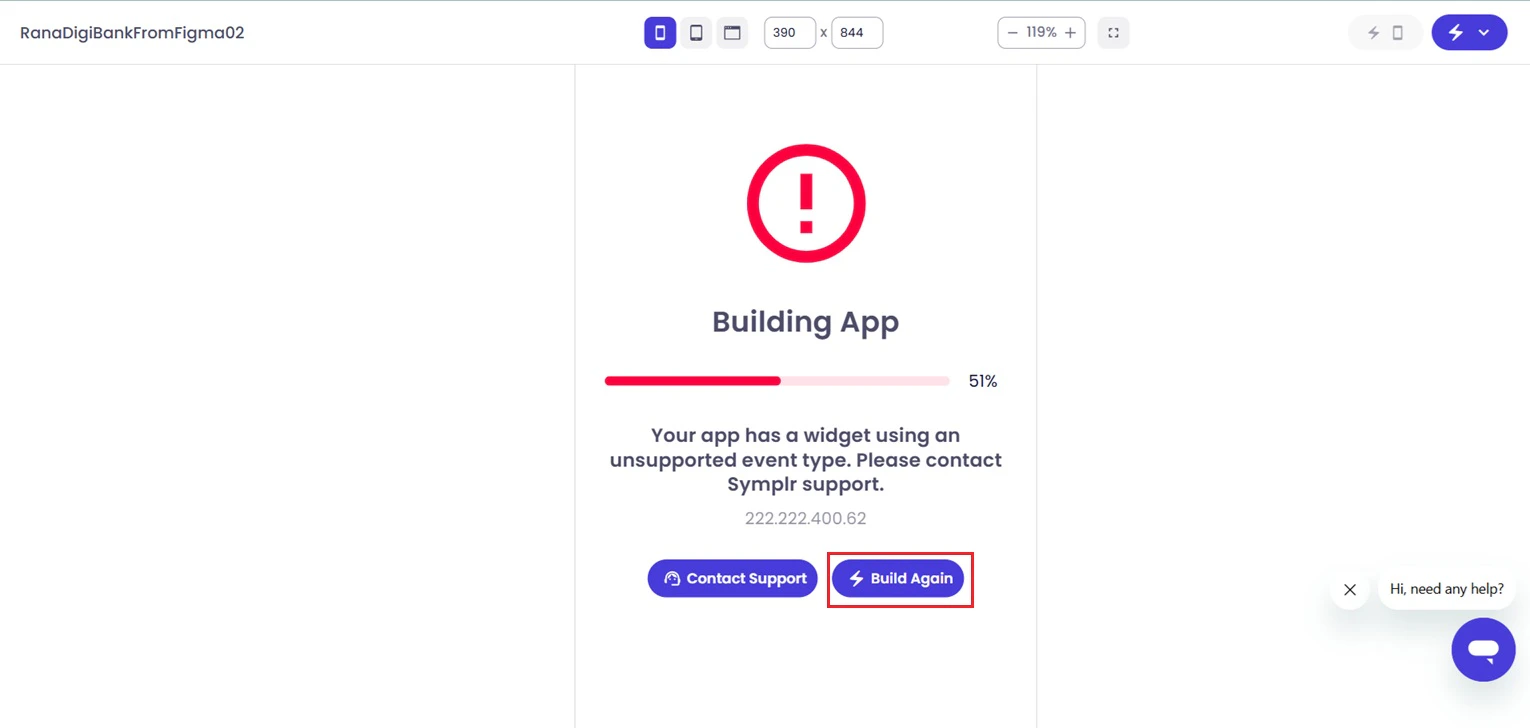
9 Build Again Button
Symplr generates a new application preview using the updated application configuration.

Contact Support

If the issue persists after rebuilding the application, use the Contact Support option available within the build failure screen.
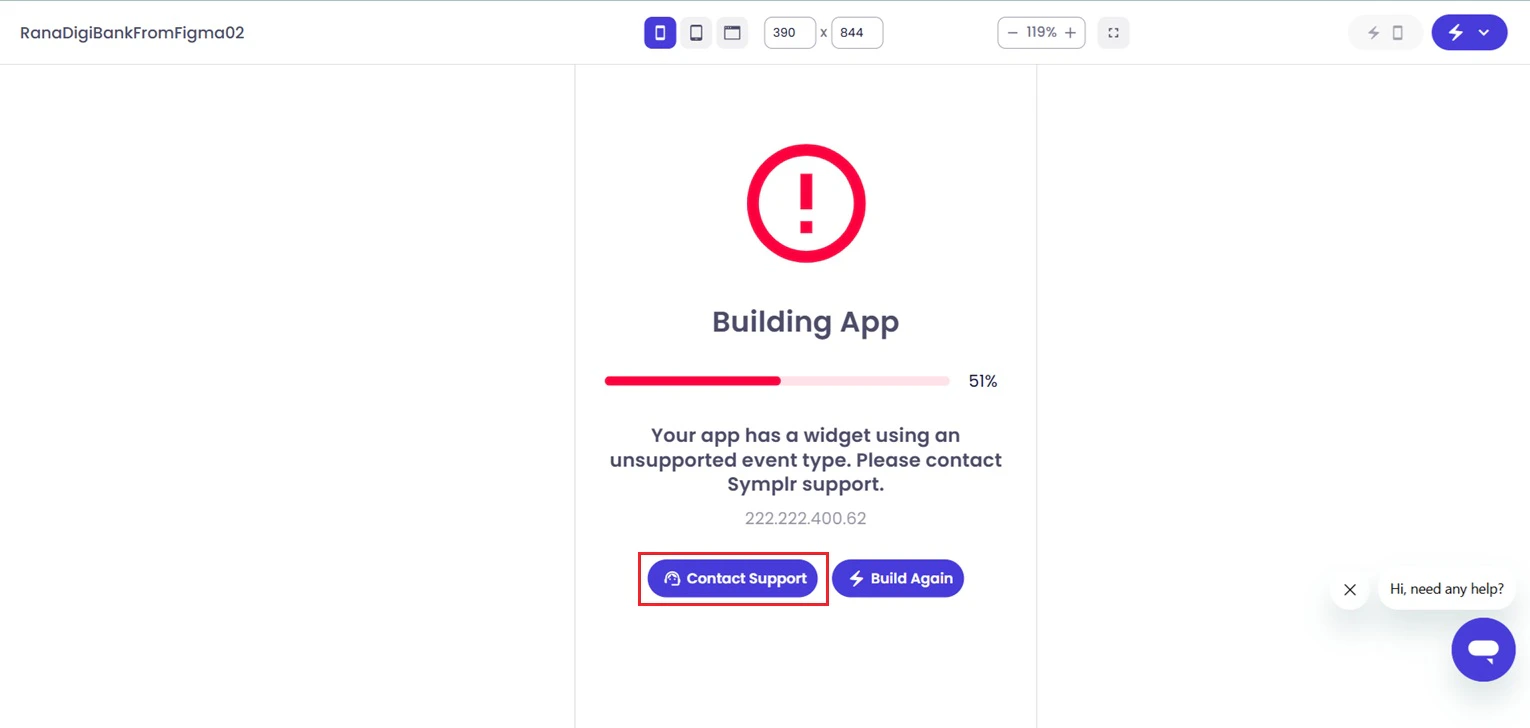
10 Contact Support Button
Use this option if additional troubleshooting assistance is required.

Next Steps

After validating the application preview, continue by downloading the generated code, running the application locally, configuring authentication, database integrations, deployment settings, extending workflows, and preparing the application for external deployment.